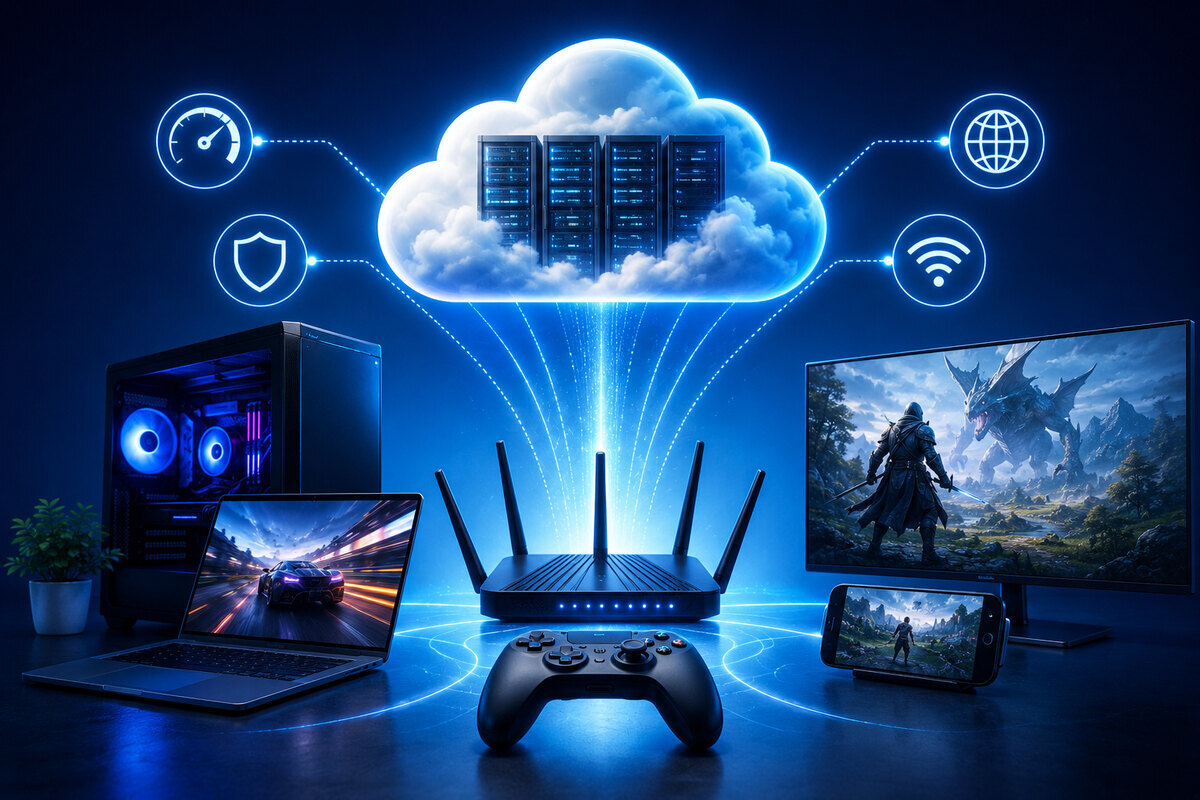
Unlike local gaming, Xbox Cloud Gaming (xCloud) streams video frames while transmitting button presses back to Microsoft's data centers in real time. Because of this, connection jitter and packet delay matter far more than raw download speed.
1. Physical Layer & Local Hardware
Priority #1: Use Ethernet (Cat6)
A direct wired connection completely eliminates wireless interference, packet drops, and airtime congestion.
-
Latency impact: Saves 10–30 ms of pure input delay compared to Wi-Fi.
If on Wi-Fi: Optimize Wireless Bands & Standards
If Ethernet is impossible:
-
Force 5 GHz or 6 GHz (Wi-Fi 6 / 6E / 7): Do not use the 2.4 GHz band. 2.4 GHz suffers from heavy interference (microwaves, Bluetooth, neighboring routers) and creates severe micro-stutters.
-
Disable "Band Steering" (Smart Connect): Routers that combine 2.4 GHz and 5 GHz under a single SSID can automatically drop your PC to 2.4 GHz mid-game. Split them into separate SSIDs (e.g.,
HomeNet_5G) and connect exclusively to 5 GHz/6 GHz. -
Use 80 MHz Channel Width (5 GHz): Avoid forcing 160 MHz on 5 GHz if you live in a dense area, as DFS (radar) interference can cause transient signal drops.
2. Advanced Router Configurations
Access your router’s administrative panel (192.168.1.1 or 192.168.0.1 in a browser):
Quality of Service (QoS) & SQM
Without QoS, when another device downloads a file or streams a 4K video, your router buffers incoming packets (known as Bufferbloat), spiking your ping from 20 ms to 200+ ms.
-
Smart Queue Management (SQM): If your router supports CAKE or FQ-CoDel (found in AsusWRT, OpenWrt, or specialized gaming routers), enable it. It intelligently manages traffic to guarantee sub-10 ms bufferbloat under load.
-
Device Prioritization: In standard QoS settings, assign your PC's IP/MAC address to High Priority. Set your maximum upload and download speed limits to 85–90% of your actual internet speed to prevent the modem from buffering.
Router Wi-Fi & Traffic Features
-
Enable OFDMA and MU-MIMO: Helps the router handle multi-device traffic concurrently without queueing your game packets.
-
Enable Airtime Fairness (CAUTION): Turn this ON if you have slow legacy devices on your network hogging bandwidth, or OFF if it causes stability issues on modern Wi-Fi 6 cards.
-
Disable SIP ALG: A legacy VoIP feature in routers that can alter low-latency UDP streams and break cloud connections.
3. Windows 11 & Browser Tuning for xCloud
Xbox App vs. Browser Performance
-
Microsoft Edge (Browser) + Clarity Boost: For many users, running Xbox Cloud Gaming inside Microsoft Edge (
[xbox.com/play](https://xbox.com/play)) delivers lower input latency than the Native Windows Xbox App.-
In Edge, click the "..." (More Actions) menu inside the game stream and toggle Clarity Boost to ON. This improves video sharpness without adding processing delay.
-
-
Disable Location Services (Windows 11): Windows periodically scans for surrounding Wi-Fi networks to update location data. This causes a noticeable 500 ms ping spike every 60 seconds on Wi-Fi.
-
Go to Settings > Privacy & security > Location and toggle Location services to Off.
-
Controller Connection
-
Plug in via USB-C: Bluetooth introduces an additional 8–15 ms of local input delay. Wiring your controller directly to your PC ensures your inputs reach the app instantaneously.
Recommended Targets
Metric
Minimum Target
Optimal Target
Download Speed
20 Mbps
50+ Mbps
Ping to Data Center
< 50 ms
< 20 ms
Jitter (Ping Variation)
< 5 ms
< 1 ms
Packet Loss
0.0%
0.0%
Comments
Post a Comment
Do not insert clickable links or your comment will be deleted. Checkbox Send me notifications to be notified of new comments via email.