Navigating
Navigating on RetroArch is as easy as you can imagine. Depending on the device you have, the control scheme is determined automatically. For example, if you are going to use it on a computer, the basic key combinations of the keyboard will apply. You move with the arrow keys and select with the Enter key, and you return with the Backspace key. If you plug a controller, you can also move with the D-Pad buttons.
The default GUI for RetroArch is Ozone. While the "skin" may differ on certain platforms, basic layout and navigation remains broadly the same.
PC
By default the keyboard should be ready to use.
Using the left and right arrow keys, you move to a different tab, each tab will relate to an aspect of the RetroArch experience (main menu for game loading, settings for settings etc.). Once the desired tab is selected, use the up and down arrow to move to an option.
Game CD ripping
To advance in the menu press Enter (or Return). To go back to the previous menu push Backspace.
Whilst in a game use the F1 key to open the Quick Menu.
Pushing Esc twice will quit the program.
Main Menu
Welcome to the main menu. This is where you will launch games, download and update cores, and have access to freely available content. Load Core, Load Content and the Online Updater are the menu items you will probably be using the most.
Discover more Emulator software download RetroArch Cloud Sync Emulation Community Membership
Classic video games
Settings
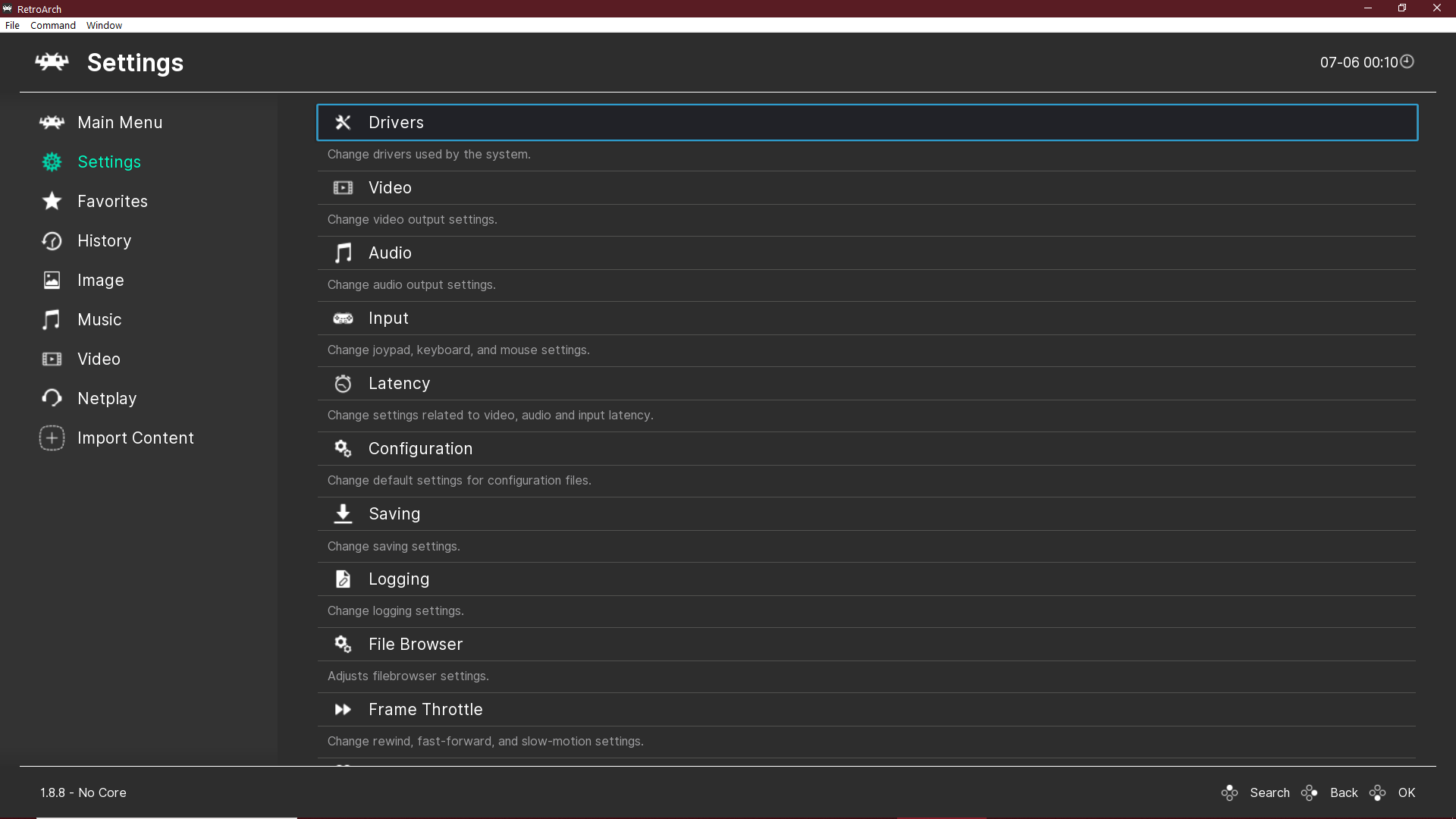
Here you will find all the options available to configure RetroArch, from Graphics, Input, Sound and everything else.
Favorites
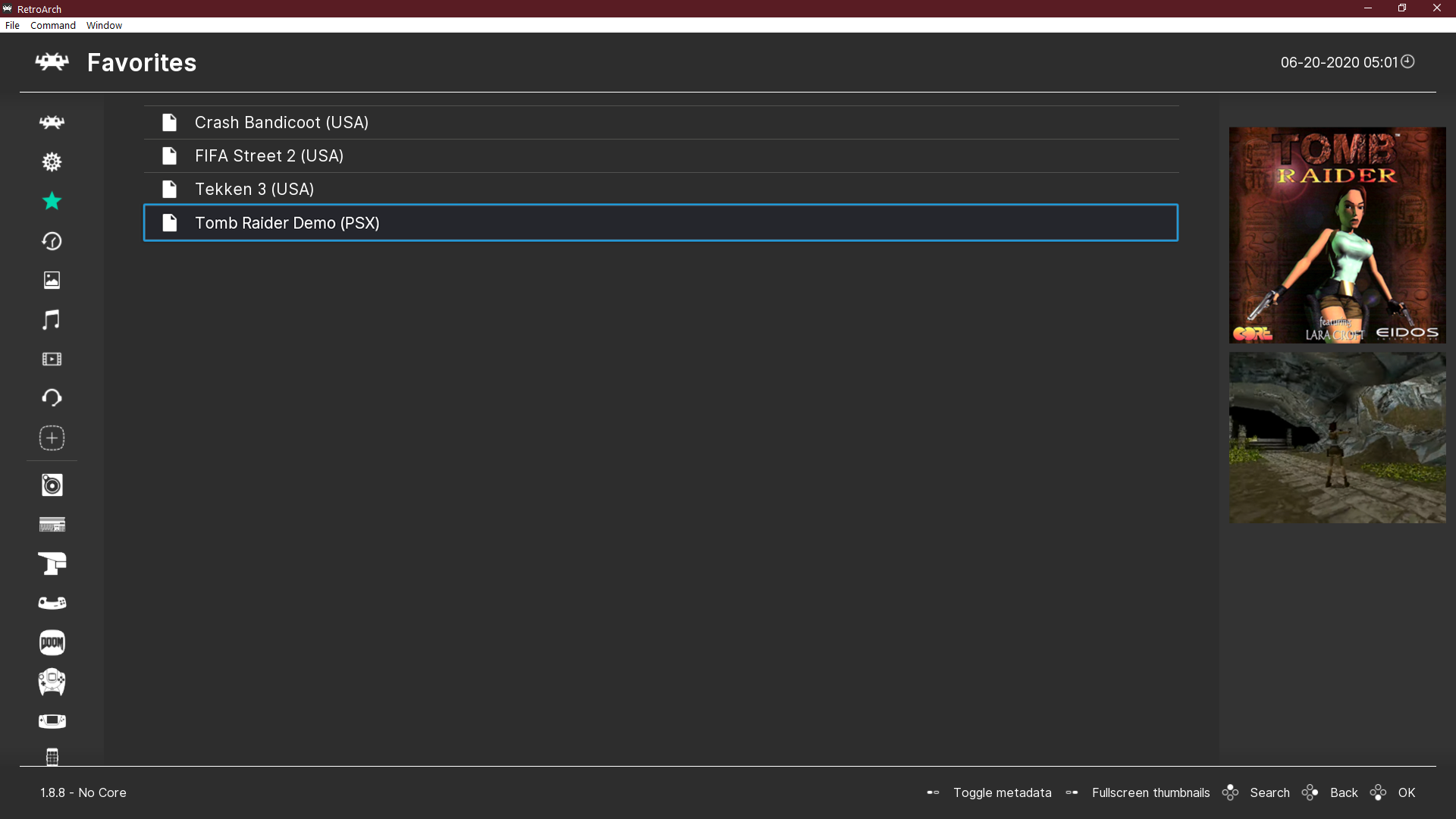
Favorites allow yous to maintain a short list of games for quick access. You can add content to this playlist from the Quick Menu or before launching it.
History
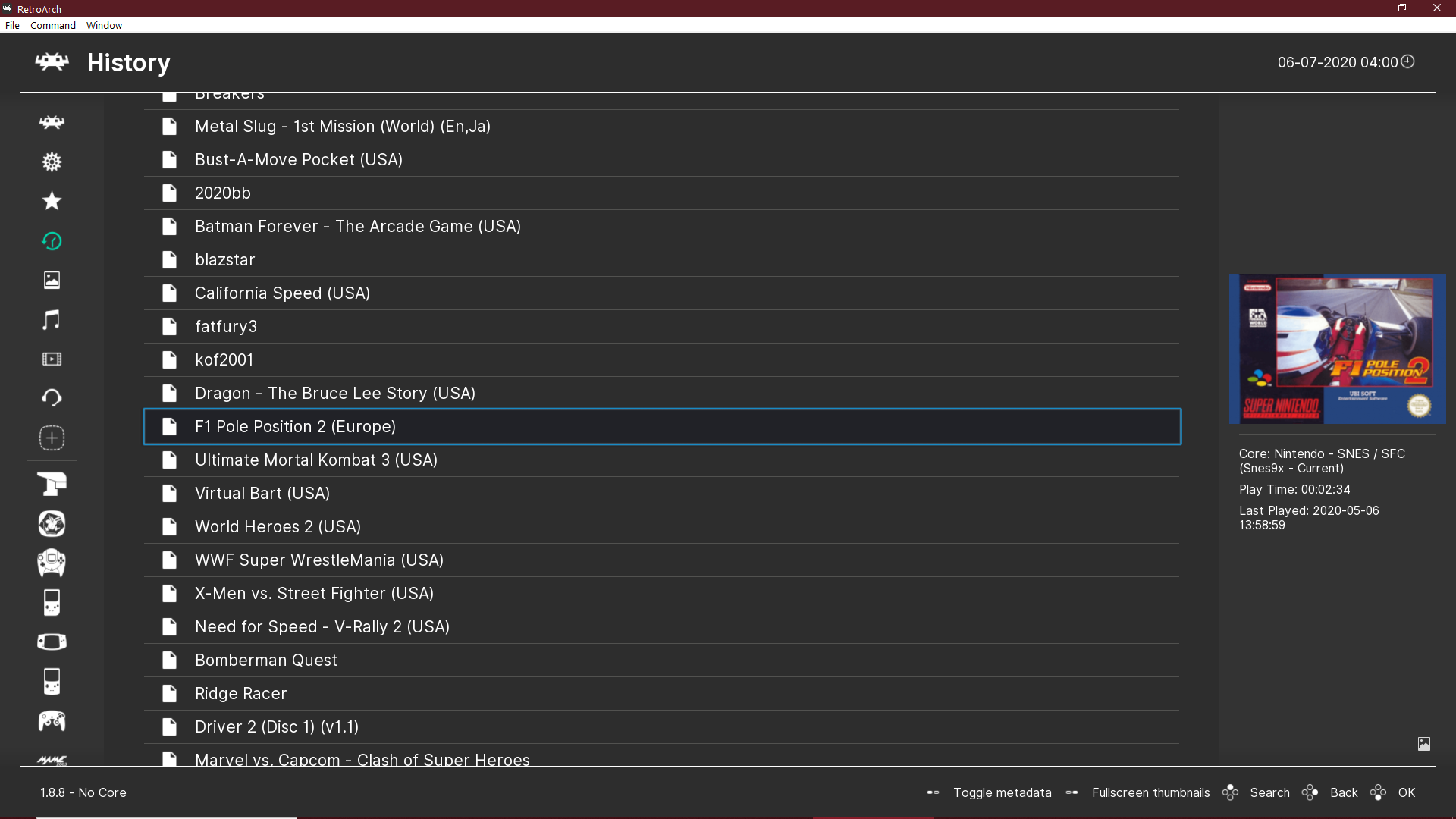
Recently launched content will be added to this Playlist. The content you ran last will be at the top.
Image, Music and Video
These tabs will handle all your media. Images will contain any screenshots you've made.
Netplay
RetroArch relies on peer-to-peer networking to reduce network latency and ensure the best possible experience. It allows multiplayer over the internet. The user can host or join a network gaming session, or use the Spectator mode to watch others play. RetroArch has a built-in netplay lobby.
Import content
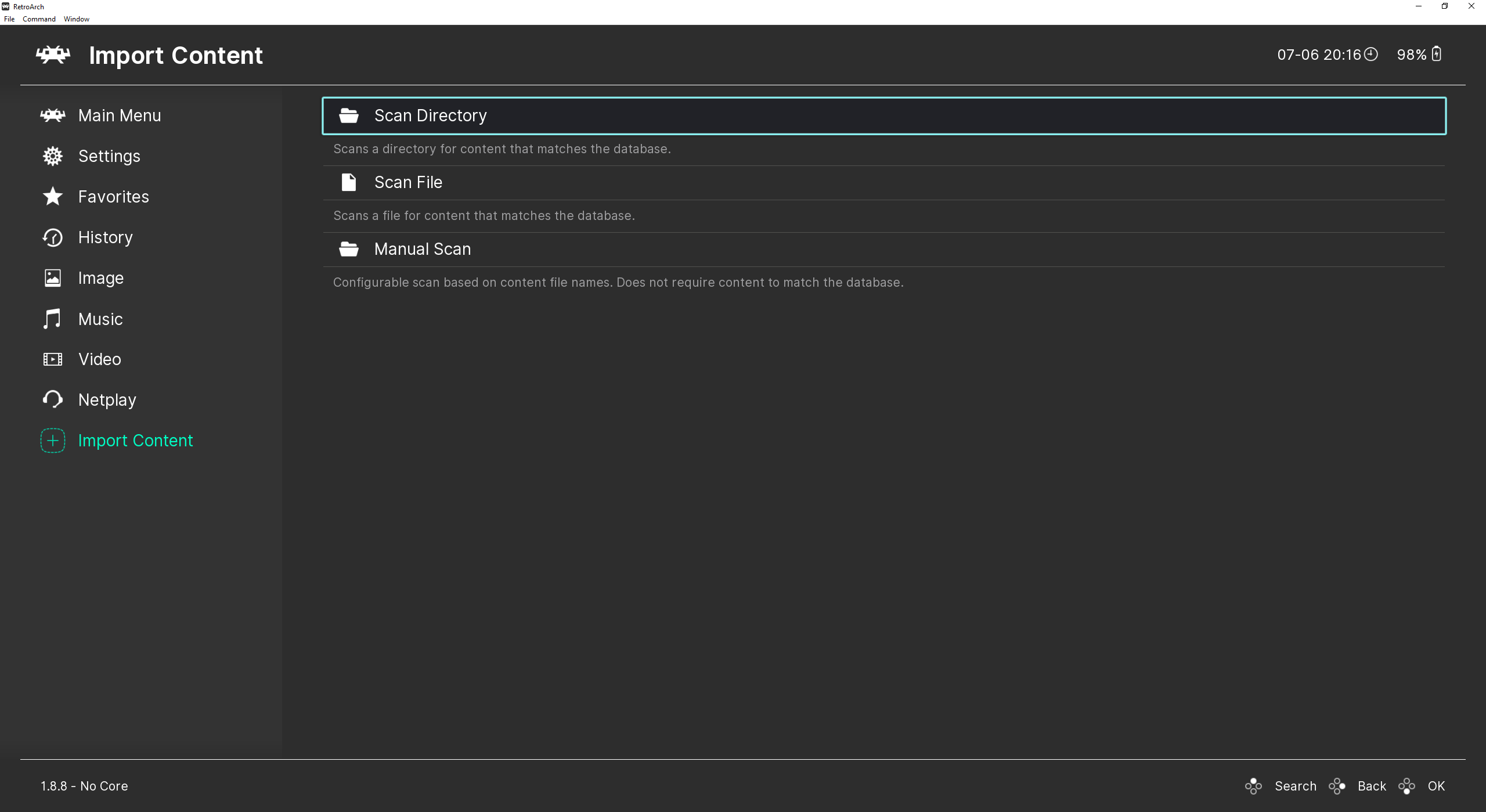
Either you scan automatically, so that any content that matches the internal database will be added to Playlists, or you scan manually, not being dependent on the database so you can freely add your content to Playlists.
Mobile
The mobile interface, GLUI, is more minimalistic compared to the PC's interface. Touch is the default input, although depending on device other options may be available. There are three different tabs, which can be switched at the bottom of the menu.
Main Menu
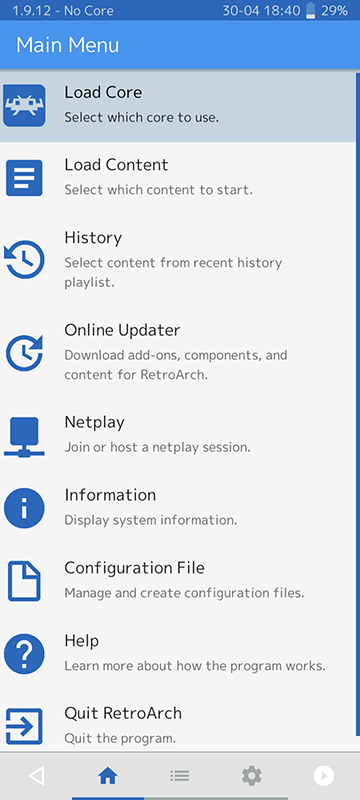
The main menu will be where you launch games, download and update cores, start or join netplay sessions and pretty much anything to do with gaming.
Playlists
Handles anything to do with creating and maintaining playlists. It gives you scanning options to recognise your game collection. It also provides access to your images, music and videos.
Settings
Here you will find all the options available to configure RetroArch, from Graphics, Input, Sound and everything else.
Comments
Post a Comment
Do not insert clickable links or your comment will be deleted. Checkbox Send me notifications to be notified of new comments via email.