
Waterfox Essentials: Tab preferences and settings

This article describes Waterfox Options related to how tabs work.

To review or change tab settings:

  1. Click the menu button menu button and select Settings.
  2. Select the General panel and go to the Tabs section.
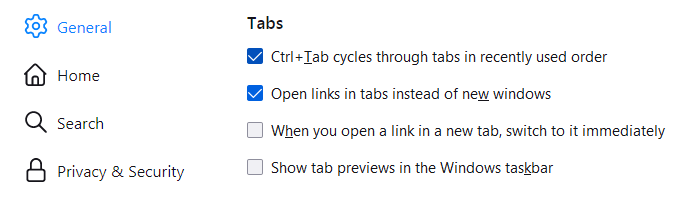
Fx89settingsTabs-Win

  • Ctrl+Tab cycles through tabs in recently used order: Select this setting if you want to use the Ctrl + Tab keyboard shortcut to switch through open tabs in the order you viewed them rather than in the order they appear in the Waterfox window. This is the default setting in new Waterfox profiles.

    Note

    If you want to use Ctrl + Tab to switch to the tab next to the current tab and Ctrl + Shift + Tab to switch to the previous tab, deselect this setting (clear the checkbox).

  • Open links in tabs instead of new windows: This option controls whether links from other applications or from web pages which request to open them in new windows are opened in a new window or a new tab in the most recent window.

    Note

    If you have chosen to open pages in new tabs, Waterfox will ignore this option and will open a new window from a link if the page author specified that the new window should have a specific size, because some pages can only be displayed correctly at a specific size.

  • When you open a link in a new tab, switch to it immediately: When you middle-click on a Web link (or hold down Ctrl while clicking with the left mouse button), the page will be opened in a new tab. That page will not be displayed and will load in a background tab. Check this setting to load and display the page in a new foreground tab instead.

  • (If applicable) Warn you when closing multiple tabs: This option is only shown if you disabled the warning dialog Waterfox displays to confirm your choice to close a window with multiple tabs (shown below). Check this setting to re-enable the warning, to prevent accidentally closing the entire window when you only intend to close the current tab.
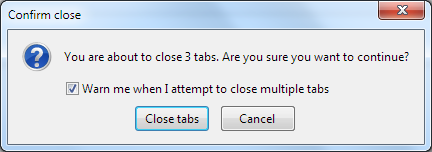
Fx63CloseMultipleTabs-Warning

  • (If applicable) Warn you when opening multiple tabs might slow down Waterfox: This option is only shown if you disabled the warning dialog Waterfox displays to confirm your choice to open multiple tabs at once (shown below). Check this setting to re-enable the warning, to prevent accidentally slowing down Waterfox while loading a large number of tabs.

  • Show tab previews in the Windows taskbar: When you move your pointer over the Waterfox icon in the Windows taskbar, Windows will show you a preview of the Waterfox window. With this option check marked, Windows will show you a separate preview for each tab.

Source

Comments

Popular posts from this blog

Windows Media Player 12 Themes for Windows 7

Bored of your default Windows Media Player Skins?. Grab some fresh and new Windows Media Player 12 themes for Windows 7 ! Windows Media Player 12 Codecs Windows Media Player 12 comes with support for DivX and MP4, but it still lacks supports for many other video formats. (amr | mpc | ofr | divx | mka | ape | flac | evo | flv | m4b | mkv | ogg | ogv | ogm | rmvb | xvid)ù A popular codec pack can be downloaded here and here . Windows Media Player 12 Skins The following skin packages includes some really awesome themes for your Windows Media Player: Alienware Theme Batman Theme Catwoman Theme Darkstar Theme Half-Life Theme Halo 2 Theme The Last Samurai Theme Stalker Theme XBOX Theme XSN Sports Them Download Windows Media Player Themes Pack 1 (70 Skins) Download Windows Media Player Themes Pack 2 (12 Skins) New Year Theme 2010 for Windows 7 This theme can be downloaded for free from uploaded.to Custom Search If you liked this article, subscribe t...

Windows 7 Keyboard Shortcuts.

Keyboard shortcuts are combinations of two or more keys that, when pressed, can be used to perform a task that would typically require a mouse or other pointing device. Keyboard shortcuts can make it easier to interact with your computer, saving you time and effort as you work with Windows and other programs.  Most programs also provide accelerator keys that can make it easier to work with menus and other commands. Check the menus of programs for accelerator keys.  If a letter is underlined in a menu, that usually means that pressing the Alt key in combination with the underlined key will have the same effect as clicking that menu item. Pressing the Alt key in some programs, such as Paint and WordPad, shows commands that are labeled with additional keys that you can press to use them. Dialog box keyboard shortcuts. The following table contains keyboard shortcuts for use in dialog boxes. Press this key To do this: Ctrl+Tab Move forward through tabs...

Windows 7 Themes.

Windows themes always seem to be a big hit. With the launch of Windows 7, the themes for Windows 7 have been in high demand.  These themes are free, both on Microsoft's part and the other ones as well.  Windows 7 has been developed keeping in mind the different points of views of the users and the commentators, because it's very easy to use and light to carry.  I've created a compilation where you can find many Windows 7 (W7) themes.  Take a look at some of these themes, some are really attractive based on Windows 7 and others are based on games, cars, vehicles, animations, just to name a few. Enjoy! Windows Strata40 Download Info of Windows Strata40 Blaque :: Final:: Download Info of Blaque :: Final:: Winter Mac Theme on W7 Download Info of Winter Mac Theme on W7 Sonye Theme for Win7 v2 Download Info of Sonye Theme for Win7 v2 Elegant-Glass-V2 Download Info of Elegant-Gl...