How do I install custom maps or edit config files in 3D Ultra Lionel TrainTown?

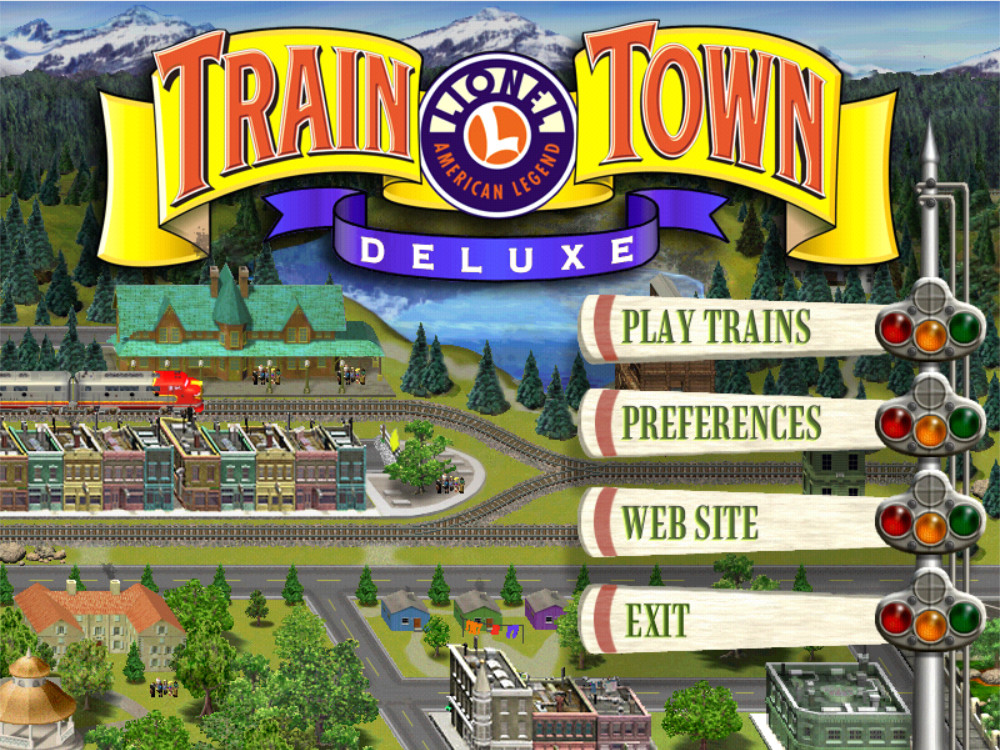
Image 3 - 3D Ultra Lionel Train Town Deluxe - ModDB

Installing custom track layouts and tweaking configuration settings in 3D Ultra Lionel TrainTown involves managing .RR layout files, editing .INI preference files, and adjusting Registry paths.

1. Installing & Loading Custom Maps (.RR Files)

Custom layouts created in the game's editor (or downloaded from preservation archives) are saved as .RR files.

How to Install Downloaded Maps
  1. Locate your game installation directory (e.g., C:\Games\TrainTown\ or C:\Program Files (x86)\Sierra\3D Ultra Lionel TrainTown\).

  2. Open or create a folder named Layouts inside the main game directory.

  3. Copy your downloaded .RR layout files into the Layouts folder.

How to Save & Load Layouts In-Game
  • Prerequisite: Make sure you have Patch 1.1 installed (if playing the original 1999 release) or are using TrainTown Deluxe, which adds native layout saving.

  • Loading a Map: Open Build Parks (or Layout Tinkerer), enter any park environment, and press the L key. A file browser prompt will appear allowing you to select and load any .RR layout file.

  • Saving a Map: While in the Layout Editor, press the S key to bring up the save prompt and store your layout as a custom .RR file.

2. Editing Configuration Files (.INI & .CFG)

Game preferences, window states, and audio settings are controlled through text configuration files located in the root installation folder or the C:\Windows\ system directory.

Editing TRAINTOWN.INI
  1. Open Notepad as Administrator.

  2. Navigate to your game folder (or C:\Windows\) and open TRAINTOWN.INI (or LIONEL.INI).

  3. Key options you can modify:

Ini, TOML

[Display]
FullScreen=0          ; Set to 0 to run in windowed mode, 1 for fullscreen
Width=800             ; Default display width
Height=600            ; Default display height

[Audio]
SoundVolume=100       ; Sound effect volume (0-100)
MusicVolume=80        ; Background music volume (0-100)
WaveDevice=1          ; Audio driver ID

[Paths]
CDDrive=E:\           ; Drive letter of your virtual or physical CD-ROM
Editing RESOURCE.CFG

The RESOURCE.CFG file controls engine audio and data directory paths:

  • Open RESOURCE.CFG in Notepad.

  • Ensure res=.\ points to the current directory so the game reads local data files rather than searching for the original CD.

3. Advanced Tweaks via Windows Registry

If you are running the game without an active CD drive mounted or need to alter launch paths, you can adjust its registry entries:

  1. Press Win + R, type regedit, and press Enter.

  2. Navigate to:

    • 64-bit Windows: HKEY_LOCAL_MACHINE\SOFTWARE\WOW6432Node\Sierra On-Line\3D Ultra Lionel TrainTown

    • 32-bit Windows: HKEY_LOCAL_MACHINE\SOFTWARE\Sierra On-Line\3D Ultra Lionel TrainTown

  3. Double-click CDDrive and set the value to match the drive letter where your mounted ISO or virtual drive resides (e.g., D:\ or E:\).

  4. Modify InstallDir if you moved the game folder to another location or drive.

Comments

Popular posts from this blog

Windows Media Player 12 Themes for Windows 7

Bored of your default Windows Media Player Skins?. Grab some fresh and new Windows Media Player 12 themes for Windows 7 ! Windows Media Player 12 Codecs Windows Media Player 12 comes with support for DivX and MP4, but it still lacks supports for many other video formats. (amr | mpc | ofr | divx | mka | ape | flac | evo | flv | m4b | mkv | ogg | ogv | ogm | rmvb | xvid)ù A popular codec pack can be downloaded here and here . Windows Media Player 12 Skins The following skin packages includes some really awesome themes for your Windows Media Player: Alienware Theme Batman Theme Catwoman Theme Darkstar Theme Half-Life Theme Halo 2 Theme The Last Samurai Theme Stalker Theme XBOX Theme XSN Sports Them Download Windows Media Player Themes Pack 1 (70 Skins) Download Windows Media Player Themes Pack 2 (12 Skins) New Year Theme 2010 for Windows 7 This theme can be downloaded for free from uploaded.to Custom Search If you liked this article, subscribe t...

Windows 7 Keyboard Shortcuts.

Keyboard shortcuts are combinations of two or more keys that, when pressed, can be used to perform a task that would typically require a mouse or other pointing device. Keyboard shortcuts can make it easier to interact with your computer, saving you time and effort as you work with Windows and other programs.  Most programs also provide accelerator keys that can make it easier to work with menus and other commands. Check the menus of programs for accelerator keys.  If a letter is underlined in a menu, that usually means that pressing the Alt key in combination with the underlined key will have the same effect as clicking that menu item. Pressing the Alt key in some programs, such as Paint and WordPad, shows commands that are labeled with additional keys that you can press to use them. Dialog box keyboard shortcuts. The following table contains keyboard shortcuts for use in dialog boxes. Press this key To do this: Ctrl+Tab Move forward through tabs...

Windows 7 consumer security software providers.

We recommend that you install security software to help protect your computer from viruses and other security threats, and that you keep your security software up to date. Some companies use products that appear to be antivirus programs to install viruses or malware on your computer. When you install the program, you might also be installing the virus or other malware, without knowing it. Many companies, including those listed on this page, distribute antivirus programs. You should carefully investigate the source of antivirus and other products before downloading and installing them. The companies listed below provide consumer security software that is compatible with Windows 7. Just click the company name to see the Windows 7-compatible product they offer. For business security software that is compatible with Windows 7, please visit the Windows 7 Compatibility Center or contact your security vendor of choice. Important: Before you install antivirus software, check to make s...