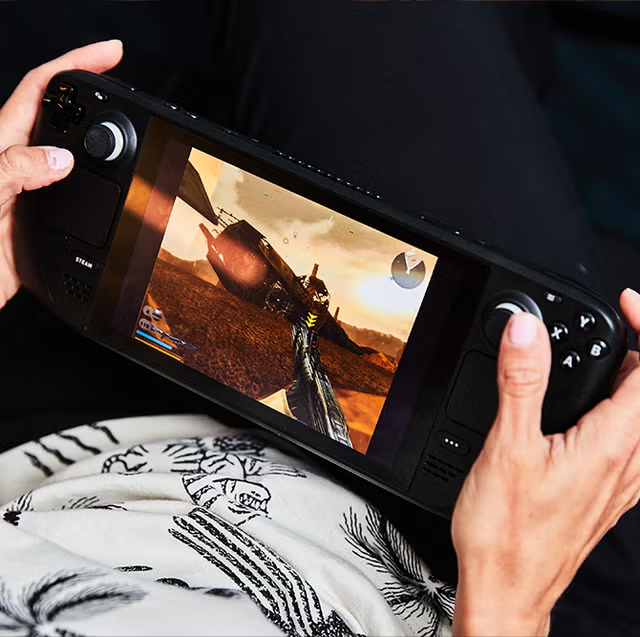
In Steam, launch commands and environment variables allow you to adjust how Proton initializes games. They are added under Game Properties > General > Launch Options.
The Core Rule: How Syntax Works
Every environment variable or wrapper script must be placed before %command%, which acts as a placeholder for the game's actual executable.
Bash
VARIABLE_NAME=value %command%
To use multiple variables at once, simply chain them together with spaces before %command%:
Bash
SteamDeck=0 PROTON_LOG=1 MANGOHUD=1 %command%
Top Environment Variables & Use Cases
1. Bypass "Steam Deck" Locks & Forced Settings
-
Command:
SteamDeck=0 %command% -
What it does: Tricks the game into thinking it is running on a standard PC desktop rather than a Steam Deck.
-
Why use it: Some games automatically lock graphics settings, limit resolution options, or force low-texture presets when they detect a Steam Deck. Setting
SteamDeck=0unlocks full PC settings menus.
2. Low-Latency Runtime Frame Rate Capping
-
DirectX 9/10/11:
DXVK_FRAME_RATE=60 %command% -
DirectX 12:
VKD3D_FRAME_RATE=60 %command% -
What it does: Limits the frame rate directly at the DXVK/VKD3D graphics translation layer before the frame hits the display server.
-
Why use it: Provides lower input latency and smoother frame pacing compared to using OS-level frame limiters. Replace
60with your desired target (e.g.,30,40,45).
3. Fixing Stuttering & Synchronization Issues
-
Disable Fsync:
PROTON_NO_FSYNC=1 %command% -
Disable Esync:
PROTON_NO_ESYNC=1 %command% -
What it does: Forcefully disables Linux eventfd-based multithreading synchronization.
-
Why use it: While Fsync/Esync improve CPU performance in 99% of games, older or non-standard engine titles can crash, freeze, or suffer heavy frame pacing spikes under them.
4. Direct3D / OpenGL Fallback Modes
-
Force WineD3D:
PROTON_USE_WINED3D=1 %command% -
Disable DX12:
PROTON_NO_D3D12=1 %command% -
What it does: Instructs Proton to bypass Vulkan-based translation (DXVK/VKD3D) and fall back to OpenGL or DirectX 11.
-
Why use it: Essential for legacy DirectX 8/9 games or older indies that exhibit broken textures or white screens when translated to Vulkan.
5. Troubleshooting & Crash Diagnostics
-
Command:
PROTON_LOG=1 %command% -
What it does: Generates a detailed Wine/Proton execution log file named
steam-AppID.login your Deck's/home/deck/directory when the game launches. -
Why use it: If a non-Steam or newly installed game immediately crashes to desktop on launch, opening this log file will pinpoint missing
.dllfiles, unhandled exceptions, or audio codec failures.
6. Display Scaling & Window Resolution Override
-
Command:
gamescope -w 1280 -h 720 -W 1920 -H 1080 -U %command% -
What it does: Forces Gamescope to render the game internally at 720p (
-w 1280 -h 720) and upscale it to 1080p (-W 1920 -H 1080) using AMD FSR 1.0 (-U). -
Why use it: Extremely useful when docked to a 1080p or 4K TV/Monitor, allowing you to run demanding games at lower internal resolutions with sharp FSR upscaling without changing global OS settings.
Quick Reference Summary
Launch Variable
Recommended Use Case
SteamDeck=0 %command%
Unlocks restricted PC graphics settings in specific games.
DXVK_FRAME_RATE=40 %command%
Ultra-low latency 40 FPS limit for DX11 games.
VKD3D_FRAME_RATE=40 %command%
Ultra-low latency 40 FPS limit for DX12 games.
PROTON_NO_FSYNC=1 %command%
Fixes multithreading thread-lock freezes in legacy titles.
PROTON_LOG=1 %command%
Creates crash log files in /home/deck/ for troubleshooting.
MANGOHUD=1 %command%
Forces system performance overlay metrics on screen.
Comments
Post a Comment
Do not insert clickable links or your comment will be deleted. Checkbox Send me notifications to be notified of new comments via email.