Waterfox Essentials: Manage preferences and add-ons, display and appearence, Change your default search settings in Waterfox
The Search panel in Waterfox Options lets you customize your search options. You can add or remove search engines, change your default search engine, assign or change keyword shortcuts, turn the search bar on or off, and choose whether to display search suggestions first or not at all.
Open the Search panel
- Click the menu buttonand select Settings.
- Select Search in the left pane.
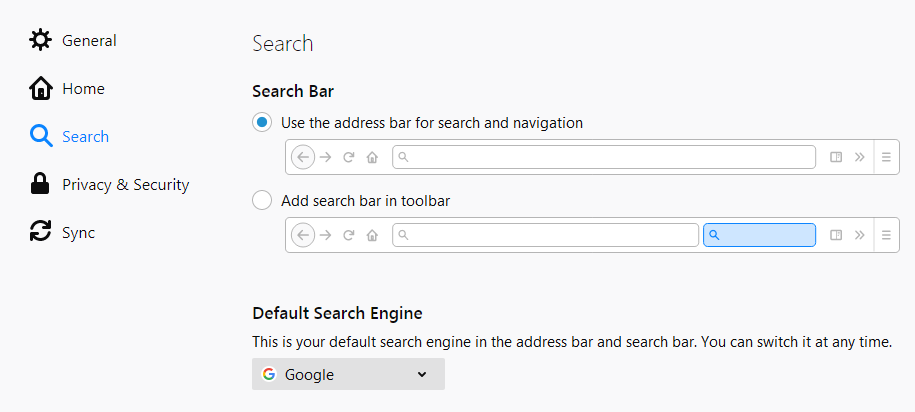
Search bar
- Use the address bar for search and navigation: This is the default setting. It provides a unified search and address bar.
- Add search bar in toolbar: Select this setting if you prefer a separate search bar.
Default search engine
Use the drop down menu under Default Search Engine to choose the search engine you wish to use by default.
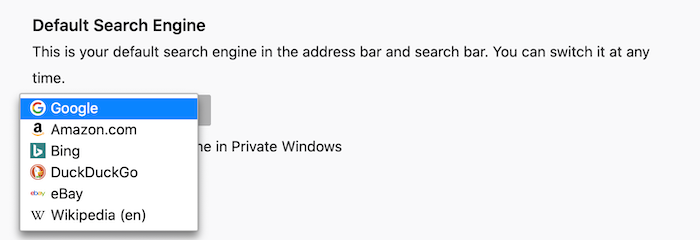
Note: Some extensions that are added to Waterfox can set a new default search engine.

You can disable or remove the extension that made the change or you can choose another search engine from the drop-down menu, if you prefer a different default.
Search suggestions
As you type into the search bar or the address bar, your default search engine shows you suggestions based on popular searches or on your previous searches. See Search suggestions in Waterfox for more information.

- Provide search suggestions: Select this setting to turn search suggestions on or off.
- Show search suggestions in address bar results: When search suggestions are turned on, select this setting to also include search suggestions in the results that are listed when you search from the Waterfox address bar. Up to two suggestions from your Search history may also appear. These will be indicated with a clock icon instead of a magnifying glass icon.
- Show search suggestions ahead of browsing history in address bar results: Select this setting to show search suggestions before your browsing history.
- Show search suggestions in Private Windows: Select this setting to show search suggestions in Private Browsing windows.
One-click search engines
When you start typing in the address bar or search bar, you’ll see icons for other search engines you can search with:
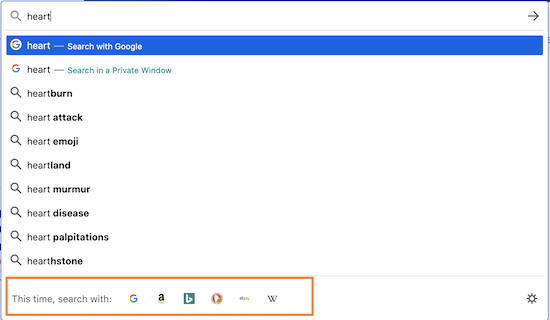
You can choose an alternative search engine and use it for your search with one click, if you don’t want to use the current default.
To remove alternative search engines you don’t want to be displayed in the search bar or address bar, remove the check mark next to the search engine listed in the Search panel under One-Click Search Engines. This will not remove the search engines themselves.
Remove or add search engines
To remove a search engine from Waterfox, restore the default search engines that come with Waterfox or add a new search engine, go to the One-Click Search Engines section of the Search panel.
Remove a search engine
- Click on the search engine you want to remove, to highlight it.
- Click the Remove button at the bottom, to take it off your list.
Info
You must use the Add-ons manager to remove any search engines installed as Waterfox extensions (see Disable or remove Add-ons for details).
Restore default search engines
If you remove any of the search engines that come with Waterfox by default, click Restore Default Search Engines at the bottom of the Search panel to bring them back.
Add a new search engine
- Click the Find more search engines link at the bottom of the Search panel.
- A Waterfox Add-ons page will open, listing available search tools.
- Click on the search engine you want to add and click Add to Waterfox.
For more information about adding or removing search engines, see Add or remove a search engine in Waterfox.
Search engine keywords
You can assign or change keyword shortcuts for your favorite search engines to make it easier to perform a search. For more information, see Assign shortcuts to search engines.
Comments
Post a Comment
Do not insert clickable links or your comment will be deleted. Checkbox Send me notifications to be notified of new comments via email.