How do I access my Xbox Play Anywhere titles and Game Pass games on Windows 11?

How to Use Xbox Play Anywhere on PC and Xbox

Accessing Xbox Play Anywhere titles and Game Pass games on Windows 11 is managed directly through the native PC Xbox App and Microsoft Store.

1.Match your Microsoft Store and Xbox App accounts:Prerequisite to avoid license verification errors.

  1. Open the Microsoft Store app in Windows 11 and confirm you are signed in with the account that holds your game purchases or Game Pass subscription.

  2. Open the Xbox App and sign in with your gaming profile.

  3. If your primary gaming account is different from your purchasing account, open Xbox App Settings > Account and link your purchasing account under Store Account.

2.Access and install Xbox Game Pass games:

  1. Click the Game Pass tab on the left sidebar of the Xbox App.

  2. Browse the PC Game Pass catalog.

  3. Select a game and click Install to download it to your storage drive, or select Play with Cloud (requires Game Pass Ultimate) to stream it without downloading.

3.Locate your Xbox Play Anywhere purchases:

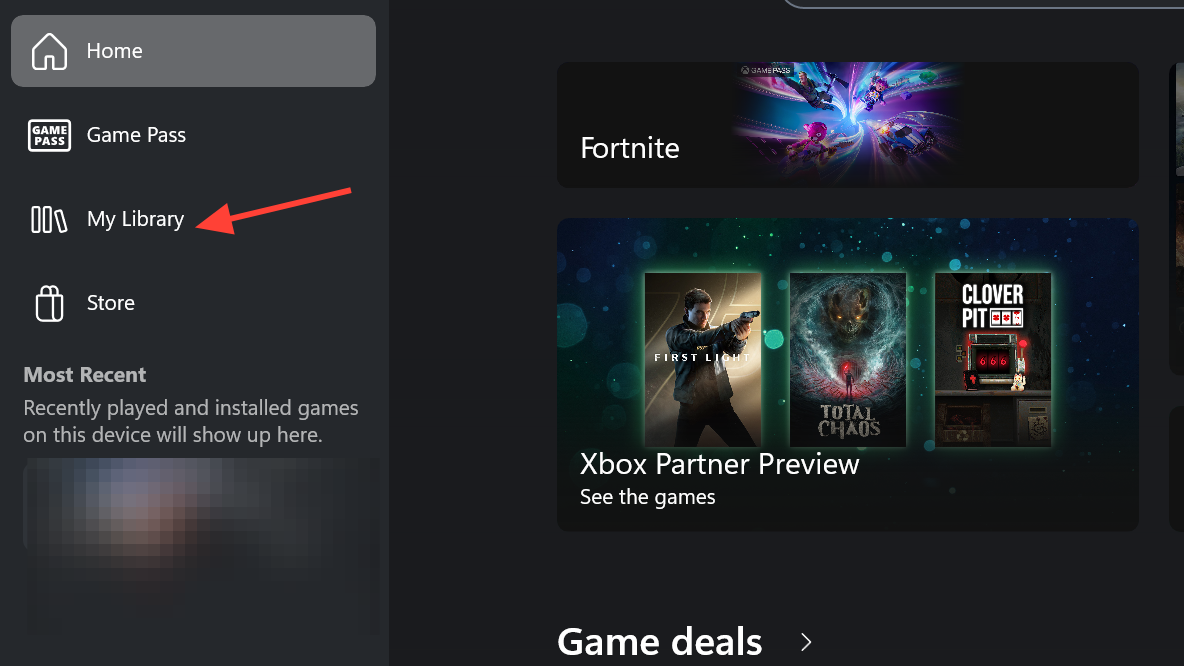
  1. Click My Library on the left sidebar of the Xbox App.

  2. Select the Owned filter at the top.

  3. Any digital Xbox game you bought on console that supports Xbox Play Anywhere will automatically appear here with a PC install license attached at no extra charge.

  4. Click the game title and select Install.

4.Launch and sync cross-progression:

  1. Launch the game from your library or the Windows 11 Start Menu.

  2. The game will automatically pull your cloud saves, achievements, and add-ons from your Xbox console session upon launch.

Important Features
  • No Console Required: Xbox Play Anywhere provides digital cross-entitlement—buying a supported game once unlocks both the Xbox console and Windows 11 PC versions permanently.

  • Xbox Mode for Handhelds & PCs: Windows 11 supports a controller-first full-screen view inside the Xbox App for seamless navigation on handheld devices (like the ASUS ROG Ally) or TV-connected PCs.

Comments

Popular posts from this blog

Windows Media Player 12 Themes for Windows 7

Bored of your default Windows Media Player Skins?. Grab some fresh and new Windows Media Player 12 themes for Windows 7 ! Windows Media Player 12 Codecs Windows Media Player 12 comes with support for DivX and MP4, but it still lacks supports for many other video formats. (amr | mpc | ofr | divx | mka | ape | flac | evo | flv | m4b | mkv | ogg | ogv | ogm | rmvb | xvid)ù A popular codec pack can be downloaded here and here . Windows Media Player 12 Skins The following skin packages includes some really awesome themes for your Windows Media Player: Alienware Theme Batman Theme Catwoman Theme Darkstar Theme Half-Life Theme Halo 2 Theme The Last Samurai Theme Stalker Theme XBOX Theme XSN Sports Them Download Windows Media Player Themes Pack 1 (70 Skins) Download Windows Media Player Themes Pack 2 (12 Skins) New Year Theme 2010 for Windows 7 This theme can be downloaded for free from uploaded.to Custom Search If you liked this article, subscribe t...

Windows 7 Keyboard Shortcuts.

Keyboard shortcuts are combinations of two or more keys that, when pressed, can be used to perform a task that would typically require a mouse or other pointing device. Keyboard shortcuts can make it easier to interact with your computer, saving you time and effort as you work with Windows and other programs.  Most programs also provide accelerator keys that can make it easier to work with menus and other commands. Check the menus of programs for accelerator keys.  If a letter is underlined in a menu, that usually means that pressing the Alt key in combination with the underlined key will have the same effect as clicking that menu item. Pressing the Alt key in some programs, such as Paint and WordPad, shows commands that are labeled with additional keys that you can press to use them. Dialog box keyboard shortcuts. The following table contains keyboard shortcuts for use in dialog boxes. Press this key To do this: Ctrl+Tab Move forward through tabs...

Basic PC General Concepts and Terminology in Windows.

If you're not totally familiar with the various components of a modern PC, then this chapter will help you understand some of the common terminology used throughout the guide and what  each hardware component does in layman's terms. Note that I use a human body analogy to describe the function of C hardware components to hopefully clarify their functionality. Experienced PC users can skip this chapter. Bits and Bytes. You will often see the terms Bits, Bytes, Kilobytes, Megabytes and Gigabytes (or their abbreviations) being thrown around in guides such as this one. A Bit is the lowest form of computer information and  can take the value 0 or 1 (i.e. Off or On). All computer functionality is derived from the behavior of Bits. For our purposes, the main conversion factors you need to know are: 8 bits (b) = 1 Byte (B) 1,024 Bytes = 1 Kilobyte (KB) 1,024 Kilobytes (KB) = 1 Megabyte (MB) 1,024 Mega bytes (MB) = 1 Gigabyte (GB) Note in particular that the general con...