Waterfox Essentials: Manage preferences and add-ons, display and appearence, Change the program used to open email links
Change the program used to open email links
Waterfox normally uses your operating system’s default mail program to send an email message. This article explains how you can change the program that is launched when you click on:
-
The Email link menu item in the Waterfox Menu bar File menu (if the Menu bar is enabled).
-
The Email link toolbar button (if you customize Waterfox controls, buttons and toolbars).
-
The Email Image… (right-click) context menu item for an image on a web page.
-
A “mailto” or email link on a web page (such as email@example.com).
Setting the mail client used by Waterfox
-
Click the menu button and select Settings.
-
In the General panel, go to the Applications section.
-
Search for the Content Type mailto and select it.
-
Click on the Action column in the mailto row to change the action.
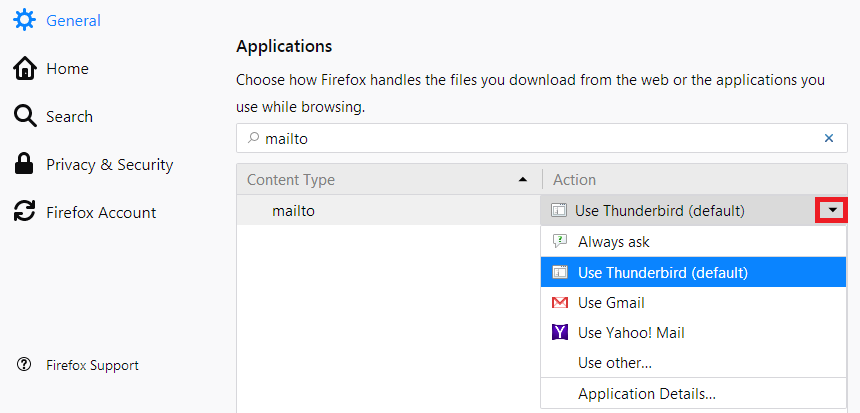
- Always ask will prompt you each time you use a mail function for which program or service to use.
- Use <Program> (default) will automatically launch your operating system’s email program (for example, Thunderbird, Outlook, Windows Live Mail Windows Mail) to its message composition window. For instructions on how to change your operating system’s default e-mail program, see the next section of this article.
- Use <Webmail> will open the message composition page for your webmail service (such as Yahoo! Mail or Gmail) inside Waterfox. For more information about using webmail services, see the Using webmail services section of this article.
- Use other… will let you specify an external program for Waterfox to launch.
- Application Details… will let you view information about or remove the webmail services that Waterfox can use.
-
Close the about:preferences page. Any changes you’ve made will automatically be saved.
Info
If the mailto Content Type is missing, or if action items such as Use Gmail are missing, a Waterfox Refresh will restore all Content Types and actions to default settings. However, this will remove all customizations, including settings for other content types. See [Refresh Waterfox
- reset add-ons and settings](/support/refresh-waterfox-reset-add-ons-and-settings) and Manage file types and download actions in Waterfox for more information.
Setting your operating system’s default mail program
By default, Waterfox will use your system’s default mail client to send email for the actions listed above. For Thunderbird, see the Make Thunderbird the Default Mail Client article for steps you can take to make it the default mail program. Check the online or in-product documentation for other mail programs.
In general, you can change the default mail program by following these instructions:
-
Open the PC Settings application (press and release the Windows Start button, then click the gear icon).
-
Select Search and apps from the sidebar.
-
Select Defaults from the sidebar.
-
Click the icon under the heading Email to show your choices.
-
Select the email program you want to use.
-
Click the Windows Start button, then click Settings.
-
Click the Apps icon, then click Default Apps the list.
-
Click the icon under the heading Email to show your choices.
-
Select the email program you want to use.
-
Right-click the Windows Start button, then click Settings.
-
Click Apps from the options to the left, then click Default apps.
-
Find the email program you want to use in the list of applications and click on it.
- A Set default file types or link types settings page will appear.
-
Underneath a file or link type (for example, .eml or MAILTO) click on the entry and select the email program you wish to use as the new default.
-
Do the same for the other file or link type entries.
-
Click the Windows Start button, then click the Default Programs item.
-
Click on Set your default programs.
-
Under Programs, click the email program you’d like to use (e.g., Thunderbird, Windows Live Mail, Outlook).
-
Click Set this program as default.
-
Click OK at the bottom of the window.
-
Click the Windows Start button, then click on the Control Panel icon to open the Windows Control Panel.
-
Click the Add or Remove Programs icon to open the Add or Remove Programs applet.
-
On the left side of the Window click the Set Program Access and Defaults icon.
-
In the Access and Defaults window, click on the Custom radio button to expand the Custom category.
-
Underneath Choose a default e-mail program, click the radio button next to the program you want to use (e.g., Thunderbird, Windows Live Mail, Outlook).
-
Click OK at the bottom of the window.
Using webmail services
Waterfox allows you to use a webmail service such as Gmail (called Google Mail in some locales) }or Yahoo! Mail for Waterfox’s mail functions. Use the instructions in the Setting the mail client used by Waterfox section above to use a webmail service in Waterfox for mailto links or the Email link feature.
If the webmail service you want to use is not available in your Waterfox Options General panel’s Applications section as a mailto choice, you can try to find an extension that supports it, either by searching addons.mozilla.org for the specific webmail service or by doing a webmail search or a mailto search and browsing through the results.
Based on information from Default mail client (mozillaZine KB), How to change the default web browser or email application (Apple.com Support), The KDE Control Center (KDE.org), Select Preferred Applications in Ubuntu (DebianAdmin.com) and How to Set Your Default Email App in Windows 11 (howtogeek.com).
Comments
Post a Comment
Do not insert clickable links or your comment will be deleted. Checkbox Send me notifications to be notified of new comments via email.