Waterfox Essentials: Manage preferences and add-ons, display and appearence, Change the fonts and colors websites use
Change the fonts and colors websites use
This article describes how to customize the way you see web pages by choosing your preferred font styles and colors.
Changing Font
To change the font:
- Click the menu button and select Settings.
- In the General panel, go down to Language and Appearance.
- Under Fonts and Colors, use the drop-down menus to select the font and font size of your choice.

- Close the about:preferences page. Any changes you’ve made will automatically be saved.
Custom Fonts
Some websites have custom fonts; to disable them:
- Click the menu button and select Settings.
- In the General panel, go down to Language and Appearance.
- Under Fonts and Colors, click the Advanced… button.

- In the Fonts dialog that opens, uncheck Allow pages to choose their own fonts, instead of your selections above.
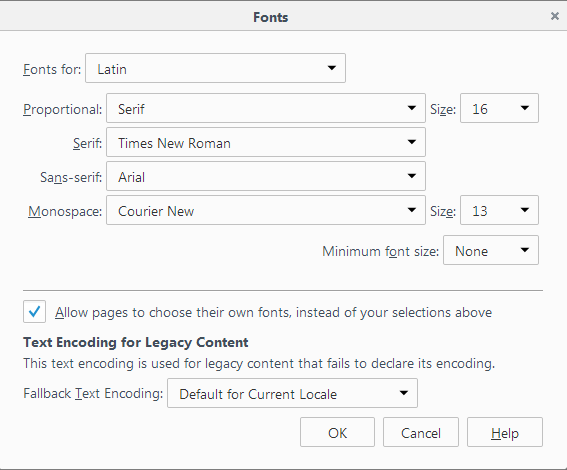
- Click OK to close the Fonts window.
- Close the about:preferences page. Any changes you’ve made will automatically be saved.
Other settings for Fonts
- From the Fonts for drop-down list in the Fonts dialog, choose a language group/script.
- For instance, to set default fonts for the West European languages/scripts (Latin), choose Latin. For a language/script not in the list, choose Other Writing Systems.
- Select whether proportional text should be serif (like “Times New Roman”) or sans-serif (like “Arial”). Then specify the font size you want for proportional text.
- Specify the font to use for Serif, Sans-serif and Monospace fonts. You can also change the size for
Monospace fonts.
You can also set the minimum web page font size. This is useful to prevent sites from using overly small fonts that are barely readable.
- Text Encoding for Legacy Content: The text encoding selected here will be used to display pages that don’t specify which encoding to use.
Change Font Color
To change the font color:
-
Click the menu button and select Settings.
-
In the General panel, go down to Language and Appearance.
-
Under Fonts and Colors, click the Colors… button.
-
Clicking on any of the colored rectangles will show you the possible colors you can choose from. Select the color you want by clicking one of the colored rectangles.
-
Click OK to close the Colors window.
-
Close the about:preferences page. Any changes you’ve made will automatically be saved.
Custom Font Color
Some websites have custom font colors, to disable them:
-
Click the menu button and select Settings.
-
In the General panel, go down to Language and Appearance.
-
Under Fonts and Colors, click the Colors… button.
-
In the window that opens, use the drop-down menu to set Override the colors specified by the page with my selections above to Always.
-
Click OK to close the Colors window.
-
Close the about:preferences page. Any changes you’ve made will automatically be saved.
Other settings for Colors
Text and Background: Here you can change the default text and background color to be used on web pages that haven’t specified that information. Click on the color samples to select colors.
- Use system colors: Check this setting to use the colors defined in your operating system settings instead of the colors specified above.
Link Colors: Here you can change the default colors for Web links. Click on the color samples to select colors.
- Underline links: By default, links are underlined on web pages. Uncheck this setting to disable this. Note that many sites specify their own styling rules, and this setting has no effect on those sites.
- Override the colors specified by the page with your selections above:
- Always: Select this setting to force all sites to use your default colors.
- Only with High Contrast themes: This setting will make Waterfox use the colors specified by the web page author, except when you are using a High Contrast Windows theme.
- Never: Select this setting to make Waterfox use the colors specified by the web page author.
Note: If you later want to restore the default colors: Warning: Changing advanced preferences can affect Waterfox’s stability and security. This is recommended for advanced users only.
- Type about:config in the address bar and press Enter. A warning page may appear. Click Accept the Risk and Continue to go to the about:config page.
- Enter browser*color in the Search field.
- Click the Reset
 button next to the modified preferences (displayed in bold font).
Zoom
Waterfox also includes a Zoom. This allows you to increase the size of text on any web page. For instructions, see Font size and zoom - increase the size of web pages.
Comments
Post a Comment
Do not insert clickable links or your comment will be deleted. Checkbox Send me notifications to be notified of new comments via email.