Waterfox Essentials: Manage preferences and add-ons, display and appearence, Cannot remove an add-on (extension or theme) -

If you can’t access the Add-ons Manager or if the option to remove a certain add-on is disabled, you may need to uninstall it from Waterfox Troubleshoot Mode.
- Click the menu button , click Help, select Troubleshoot Mode… and click Restart in the Restart Waterfox in Troubleshoot Mode? dialog.
Info
You can also start Waterfox in Troubleshoot Mode by holding down the Shift key while starting Waterfox. 2. In the Waterfox Troubleshoot Mode dialog, click Open.
Once Waterfox has started in Troubleshoot Mode, try removing the add-on again and then restarting Waterfox.
Uninstalling add-ons from the Windows Control Panel
Some add-ons are installed by other programs. You may be able to remove the add-on from the Windows Control Panel or Settings page.
-
See Microsoft’s article, Windows 7 – How to properly uninstall programs.
-
See this Microsoft Community post for more help.
-
See Microsoft’s article, Repair or remove programs in Windows 10.
Managing extensions installed by other software
Sometimes installing or updating other software will add an extension that can’t be removed from within the Add-ons Manager because the option to remove it is disabled or not functional.
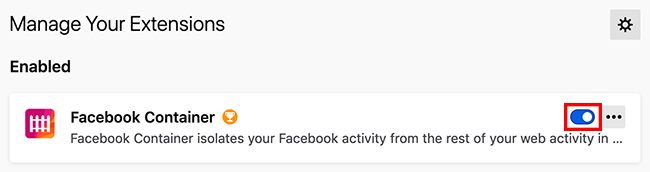
The software that added the Waterfox extension may include an option to remove it. You should visit the support site of the software provider for more information. As an alternative, simply disable the extension in the Add-ons manager if you no longer wish to use it. To disable the extension, click the blue toggle.
Uninstalling manually
If you can’t remove an extension from Waterfox using the other methods described above, you can manually remove it. First navigate to the folder where extensions are installed:
-
Open your profile folder:
- Click the menu button , click Help and select Troubleshooting Information. The Troubleshooting Information tab will open.
- Under the Application Basics section next to Profile Folder, click Open Folder. Your profile folder will open.
Info
If you are unable to open or use Waterfox, follow the instructions in Finding your profile without opening Waterfox.
-
Open the extensions folder inside your profile folder. Inside the extensions folder there are folders or XPI files for each extension and theme that you have installed.
-
To determine which folder or XPI file corresponds to the extension you want to uninstall, return to Waterfox and the Troubleshooting Information tab.
-
In the Extensions section, find the extension you want to remove and note the string in the ID column.
-
Click the Waterfox menu and select Exit.
-
Delete the folder or XPI file that corresponds to the extension ID you noted above.
Managing globally installed extensions
In rare cases, extensions are installed globally into the Waterfox installation folder or using the Windows registry. See this article on Extension Workshop for more information. Follow these steps to remove a globally installed extension:
- Click the Waterfox menu and select Exit.
- To find the sideloading directory, go to the C:\Users{user name}\AppData\Roaming\Waterfox\ folder and open the Extensions{ec8030f7-c20a-464f-9b0e-13a3a9e97384} folder.
- Follow the steps above to locate and delete the appropriate folder or XPI file.
Comments
Post a Comment
Do not insert clickable links or your comment will be deleted. Checkbox Send me notifications to be notified of new comments via email.