How does Xbox's official PC compatibility layer work under the hood compared to open-source emulators like Xemu or Xenia?
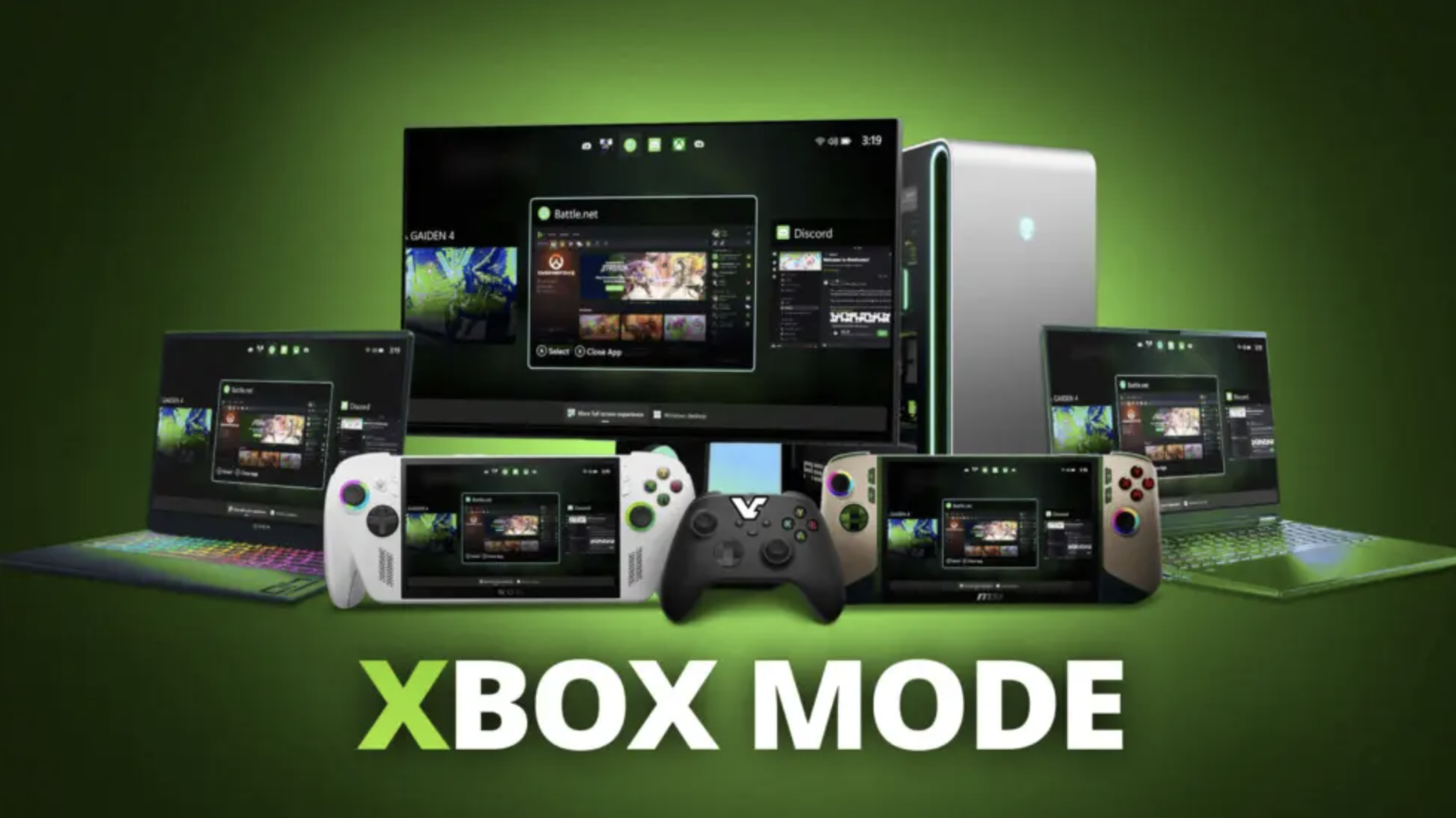
Microsoft’s official Xbox Backward Compatibility program on PC takes a fundamentally different engineering approach compared to community open-source emulators like Xemu (Original Xbox) and Xenia (Xbox 360).
Rather than building a standalone, clean-room emulator from scratch, Microsoft ported its battle-tested console virtualization stack directly to Windows 11.
Architecture & Execution Stack
1. The Official Microsoft Stack (Nested Hypervisor Approach)
Microsoft's PC layer utilizes a nested emulation architecture (often called an "emulator inside an emulator"):
-
Host Emulator (
XeO3/Fission): Microsoft ported its internal Xbox 360 emulator—originally written for Xbox One and Series X|S—to modern x86-64 Windows, adapting its graphics renderer to native Direct3D 12. -
Nested OG Xbox Layer (
XeFu/Fusion): When launching an Original Xbox title,XeO3bootsXeFu, the legacy OG Xbox emulator Microsoft created for the Xbox 360 in 2005. -
Targeted Patching: Per-game configuration flags, memory hacks, and launch parameters are fed directly via runtime arguments (
LaunchArguments.txt) and pre-packaged binary fixes.
2. Xemu (Original Xbox Open-Source)
-
Core Engine: Built on a customized branch of QEMU, simulating the Original Xbox’s x86 Intel Pentium III CPU and custom motherboard hardware.
-
GPU Emulation: Translates the low-level register calls of the Xbox’s NVIDIA NV2A GPU to modern OpenGL or Vulkan pipelines in real time.
-
Scope: Full-system hardware emulation. It boots the original Xbox digital operating system and dashboard rather than bypassing it.
3. Xenia (Xbox 360 Open-Source)
-
Core Engine: Translates the 3-core IBM PowerPC (Xenon) CPU architecture to x86-64 instructions using a custom Just-In-Time (JIT) dynamic recompiler.
-
GPU Emulation: Intercepts ATI Xenos GPU commands and translates microcode directly into Vulkan or Direct3D 12 shaders on-the-fly.
-
Scope: High-level OS call interception (HLE), bypassing the original 360 dashboard kernel to execute game binaries directly.
Key Differences
Feature
Microsoft PC Backward Compatibility
Xemu (OG Xbox)
Xenia (Xbox 360)
Architectural Model
Nested Production Emulator (XeO3 + XeFu)
QEMU Hardware Virtualization
Custom PPC-to-x86 JIT Recompiler
Shader Translation
Ahead-Of-Time (AOT): Shaders pre-compiled offline into D3D12 (BackgroundShaderCompiler)
JIT Runtime: Converts NV2A registers to Vulkan/OpenGL shaders as drawn
JIT Runtime: Translates Xenos microcode to D3D12/Vulkan on-the-fly
Performance Overhead
Minimal; pre-compiled assets & hypervisor integration prevent shader stutters
Moderate; CPU-bound due to low-level hardware virtualization
Variable; depends heavily on JIT caching and host GPU shader execution
Compatibility Strategy
Curated: Game-by-game distribution with custom patches per title
Universal: Aims for 1:1 hardware accuracy across the entire OG Xbox library
Universal: General-purpose JIT targeting broad library compatibility
Source Advantage
Direct access to original Xbox/360 source code, microcode, and hypervisors
Reverse-engineered without proprietary source code
Reverse-engineered without proprietary source code
Why Microsoft Chose XeO3 Porting Over Native Windows Recompilation
-
Leveraging 20+ Years of Optimization: Developing
XeO3andXeFurequired decades of internal engineering for Xbox One and Series consoles. Porting the existing hypervisor to Windows 11 allowed Microsoft to instantly utilize thousands of pre-existing game-specific compatibility fixes. -
Zero Shader Stutter: By recompiling PowerPC and NV2A/Xenos shaders ahead-of-time into native D3D12 shader binaries during build packaging, the official layer avoids the runtime "shader compilation stutter" common in open-source emulators compiling shaders mid-game.
-
Unified Codebase: Running Xbox 360 and OG Xbox games through a single base layer (
XeO3) simplifies updating graphics features (such as 4x resolution scaling and V-Sync controls) across both generations on modern PC hardware.
Comments
Post a Comment
Do not insert clickable links or your comment will be deleted. Checkbox Send me notifications to be notified of new comments via email.