How do I install and configure the Better xCloud extension/script in Microsoft Edge?

Better xCloud

Better xCloud is an open-source userscript that injects power-user controls—such as bitrate customization, server region forcing, local co-op, and high-performance video codecs—directly into [xbox.com/play](https://xbox.com/play).

Because Microsoft Edge does not host userscripts natively, you must first install a script manager extension like Tampermonkey.

1.Install the Tampermonkey Extension:Required to parse and inject the JavaScript file into xbox.com/play.

  1. Open Microsoft Edge on your PC.

  2. Go to the Microsoft Edge Add-ons Store and search for Tampermonkey (or get it directly from the Chrome Web Store).

  3. Click Get to install the extension to Edge.

  4. Note: If prompted by Edge, enable Developer Mode in edge://extensions to allow userscript execution.

2.Install the Better xCloud Script:Fetch the official script release from GitHub.

  1. Navigate to the official project site at better-xcloud.github.io/chromium/ (or open the official Better xCloud GitHub repository).

  2. Click the Install Better xCloud button.

  3. Tampermonkey will automatically open a new tab showing the script source code.

  4. Click the Install (or Reinstall) button inside the Tampermonkey tab to authorize the script.

3.Launch Xbox Cloud Gaming & Verify Installation:Access the new embedded settings overlay.

  1. Navigate to [xbox.com/play](https://xbox.com/play) in Edge.

  2. Log into your Microsoft account if prompted.

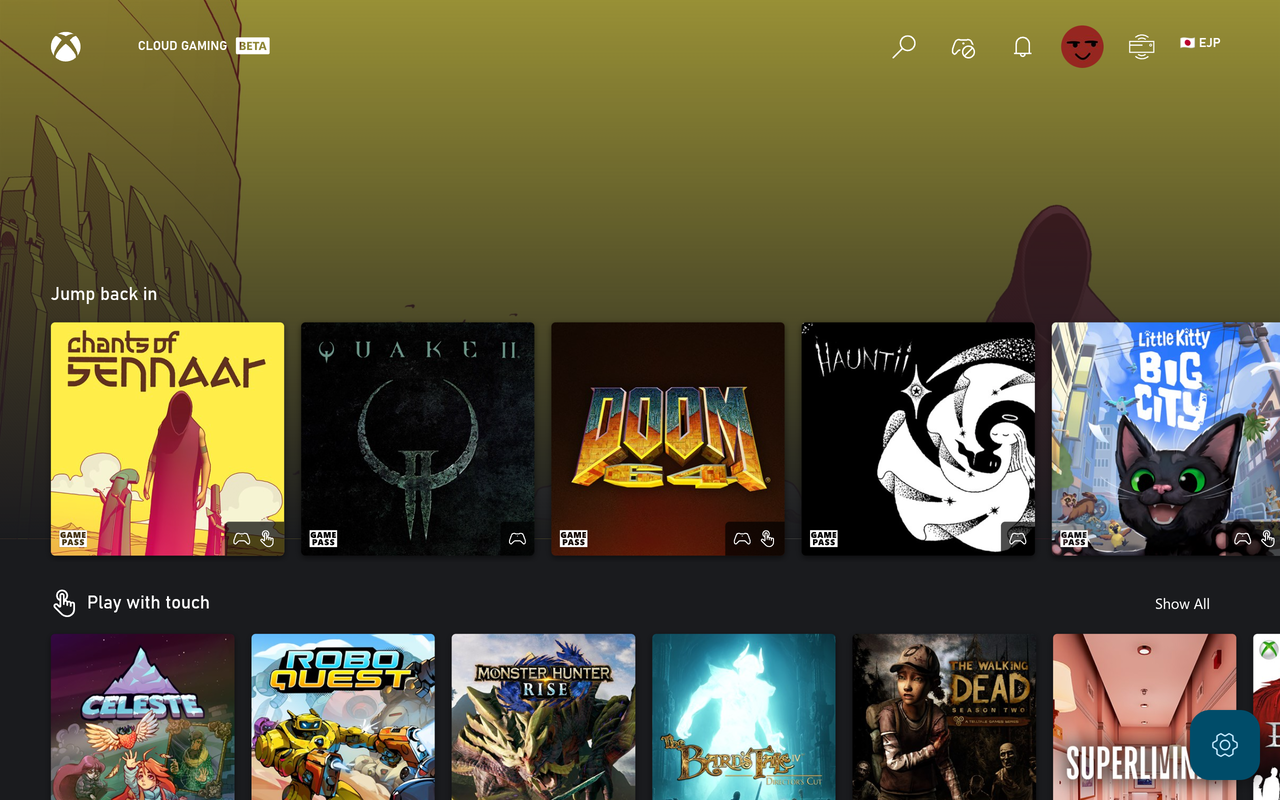
  3. You will see a new Better xCloud button or gear icon embedded in the top-left or top-right area of the interface.

  4. Click the icon to open the Better xCloud Configuration Menu.

Key Settings to Configure for Edge

Once the menu is open, adjust these recommended parameters:

1. Stream & Server Settings
  • Region / Server Override: Force connection to your nearest geographic data center if Xbox auto-routing assigns you to a higher-ping server.

  • Target Resolution & Quality: Lock the stream output to 1080p.

  • Prefer IPv6: Enable this toggle if your router and ISP support IPv6 to help lower overall routing hop latency.

2. Audio & Video Decoding
  • Codec Preference: Switch between H.264 and Direct / AV1 based on your GPU's native hardware decoding capabilities. (If your stream stutters, switch back to Default/H.264 High Profile).

  • Volume Booster: Use the script's built-in audio amplifier if quiet game audio is difficult to hear through headphones.

3. Controls & Gameplay
  • Disable Post-Stream Survey: Silences the mandatory "How was your stream?" pop-up every time you quit a game.

  • Local Co-Op Support: Enables multiple local controllers to route to the same cloud stream for local multiplayer games.

  • Mouse & Keyboard Emulation: Allows playing controller-only cloud titles using your PC's native mouse and keyboard layout.

Comments

Popular posts from this blog

Windows 7 Keyboard Shortcuts.

Keyboard shortcuts are combinations of two or more keys that, when pressed, can be used to perform a task that would typically require a mouse or other pointing device. Keyboard shortcuts can make it easier to interact with your computer, saving you time and effort as you work with Windows and other programs.  Most programs also provide accelerator keys that can make it easier to work with menus and other commands. Check the menus of programs for accelerator keys.  If a letter is underlined in a menu, that usually means that pressing the Alt key in combination with the underlined key will have the same effect as clicking that menu item. Pressing the Alt key in some programs, such as Paint and WordPad, shows commands that are labeled with additional keys that you can press to use them. Dialog box keyboard shortcuts. The following table contains keyboard shortcuts for use in dialog boxes. Press this key To do this: Ctrl+Tab Move forward through tabs...

Windows 7 consumer security software providers.

We recommend that you install security software to help protect your computer from viruses and other security threats, and that you keep your security software up to date. Some companies use products that appear to be antivirus programs to install viruses or malware on your computer. When you install the program, you might also be installing the virus or other malware, without knowing it. Many companies, including those listed on this page, distribute antivirus programs. You should carefully investigate the source of antivirus and other products before downloading and installing them. The companies listed below provide consumer security software that is compatible with Windows 7. Just click the company name to see the Windows 7-compatible product they offer. For business security software that is compatible with Windows 7, please visit the Windows 7 Compatibility Center or contact your security vendor of choice. Important: Before you install antivirus software, check to make s...

Windows Media Player 12 Themes for Windows 7

Bored of your default Windows Media Player Skins?. Grab some fresh and new Windows Media Player 12 themes for Windows 7 ! Windows Media Player 12 Codecs Windows Media Player 12 comes with support for DivX and MP4, but it still lacks supports for many other video formats. (amr | mpc | ofr | divx | mka | ape | flac | evo | flv | m4b | mkv | ogg | ogv | ogm | rmvb | xvid)รน A popular codec pack can be downloaded here and here . Windows Media Player 12 Skins The following skin packages includes some really awesome themes for your Windows Media Player: Alienware Theme Batman Theme Catwoman Theme Darkstar Theme Half-Life Theme Halo 2 Theme The Last Samurai Theme Stalker Theme XBOX Theme XSN Sports Them Download Windows Media Player Themes Pack 1 (70 Skins) Download Windows Media Player Themes Pack 2 (12 Skins) New Year Theme 2010 for Windows 7 This theme can be downloaded for free from uploaded.to Custom Search If you liked this article, subscribe t...