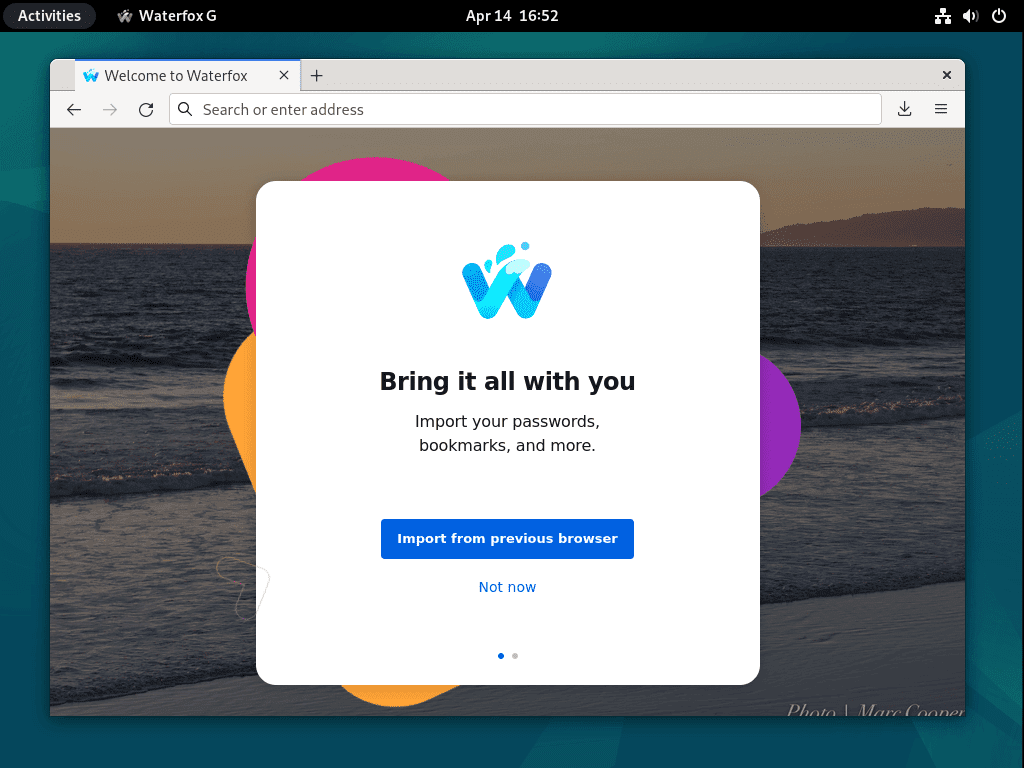
Waterfox Essentials: Download, Install and Migration, Install Waterfox on Linux.

This article only applies to Linux. For instructions to install Waterfox on Windows, see How to install Waterfox on Windows.

Install from your distribution package manager (Recommended)

To install Waterfox using your distribution package manager, please refer to your Linux distribution’s documentation.

This method is recommended because it ensures Waterfox and all the required libraries are installed and configured optimally for your distribution. However, there may be a small delay between the official release of a new version of Waterfox and the moment when your distribution updates the version it distributes. Your distribution may also distribute it without the Waterfox branding.

Install from Flatpak

To install Waterfox from Flatpak, install and configure Flatpak on your computer. Once Flatpak is installed, go to the Waterfox Flathub’s page and click the Install button. Alternatively, you can type the following command in a terminal:

flatpak install flathub net.waterfox.waterfox

Install Waterfox from Waterfox builds (For advanced users)

  • Before you install Waterfox, make sure that your computer has the required libraries installed. Missing libraries will cause Waterfox to be inoperable.
  • To install Waterfox with this method, you must be able to login as root or execute sudo commands.
  • This installation will have priority over the Waterfox version installed through your package manager. To run the version installed with your package manager, you will need to execute the binary from a terminal. To do so in most distributions, open a terminal and type: /usr/bin/waterfox.
  1. Go to the Waterfox download page and click on the Download button.

  2. Open a terminal and go to the folder where your download has been saved. For example:

cd ~/Downloads

  1. Extract the contents of the downloaded file by typing:

tar xjf waterfox-*.tar.bz2

The following commands must be executed as root, or preceded by **sudo**.

  1. Move the uncompressed Waterfox folder to /opt:

mv waterfox /opt

  1. Create a symlink to the Waterfox executable:

ln -s /opt/waterfox/waterfox /usr/local/bin/waterfox

To verify that the installation was successful, you can open the Troubleshooting Information page. In the Application Basics section, the value of Application Binary should be **/opt/firefox/waterfox-bin**.

Comments

Popular posts from this blog

Windows Media Player 12 Themes for Windows 7

Bored of your default Windows Media Player Skins?. Grab some fresh and new Windows Media Player 12 themes for Windows 7 ! Windows Media Player 12 Codecs Windows Media Player 12 comes with support for DivX and MP4, but it still lacks supports for many other video formats. (amr | mpc | ofr | divx | mka | ape | flac | evo | flv | m4b | mkv | ogg | ogv | ogm | rmvb | xvid)ù A popular codec pack can be downloaded here and here . Windows Media Player 12 Skins The following skin packages includes some really awesome themes for your Windows Media Player: Alienware Theme Batman Theme Catwoman Theme Darkstar Theme Half-Life Theme Halo 2 Theme The Last Samurai Theme Stalker Theme XBOX Theme XSN Sports Them Download Windows Media Player Themes Pack 1 (70 Skins) Download Windows Media Player Themes Pack 2 (12 Skins) New Year Theme 2010 for Windows 7 This theme can be downloaded for free from uploaded.to Custom Search If you liked this article, subscribe t...

Windows 7 Keyboard Shortcuts.

Keyboard shortcuts are combinations of two or more keys that, when pressed, can be used to perform a task that would typically require a mouse or other pointing device. Keyboard shortcuts can make it easier to interact with your computer, saving you time and effort as you work with Windows and other programs.  Most programs also provide accelerator keys that can make it easier to work with menus and other commands. Check the menus of programs for accelerator keys.  If a letter is underlined in a menu, that usually means that pressing the Alt key in combination with the underlined key will have the same effect as clicking that menu item. Pressing the Alt key in some programs, such as Paint and WordPad, shows commands that are labeled with additional keys that you can press to use them. Dialog box keyboard shortcuts. The following table contains keyboard shortcuts for use in dialog boxes. Press this key To do this: Ctrl+Tab Move forward through tabs...

Windows 7 Themes.

Windows themes always seem to be a big hit. With the launch of Windows 7, the themes for Windows 7 have been in high demand.  These themes are free, both on Microsoft's part and the other ones as well.  Windows 7 has been developed keeping in mind the different points of views of the users and the commentators, because it's very easy to use and light to carry.  I've created a compilation where you can find many Windows 7 (W7) themes.  Take a look at some of these themes, some are really attractive based on Windows 7 and others are based on games, cars, vehicles, animations, just to name a few. Enjoy! Windows Strata40 Download Info of Windows Strata40 Blaque :: Final:: Download Info of Blaque :: Final:: Winter Mac Theme on W7 Download Info of Winter Mac Theme on W7 Sonye Theme for Win7 v2 Download Info of Sonye Theme for Win7 v2 Elegant-Glass-V2 Download Info of Elegant-Gl...