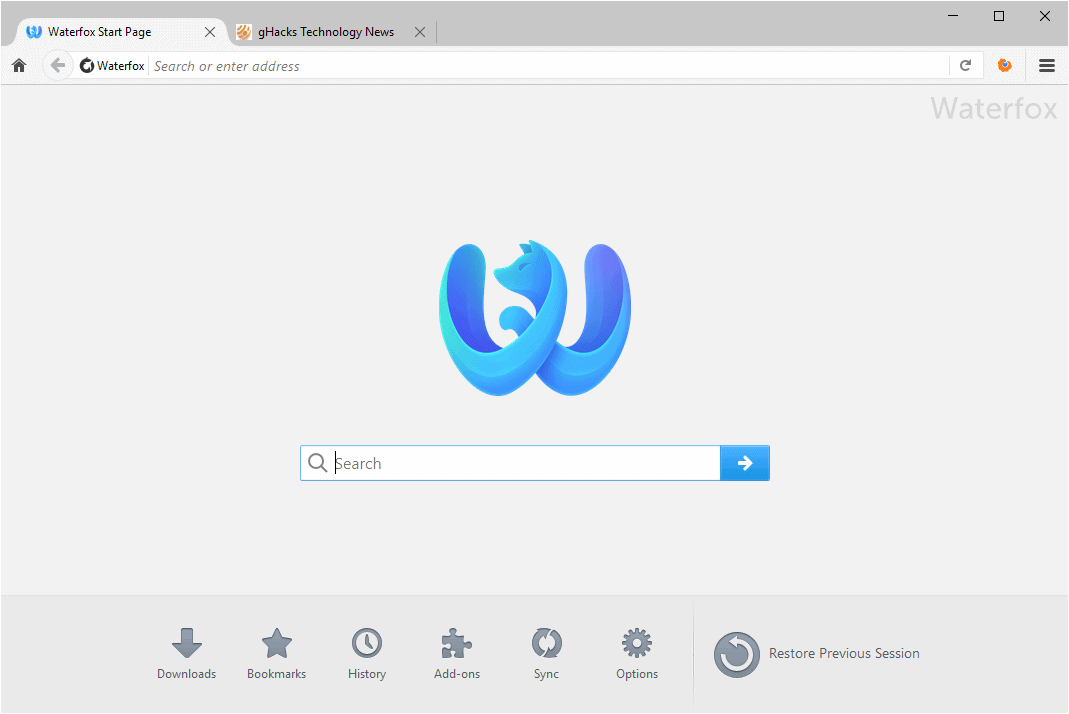
 You can import bookmarks, passwords, browsing history, cookies, and more into Waterfox from other browsers such as Chrome, Edge, Safari, and Internet Explorer. You can do this during first-run or any time later from Waterfox settings.
- If you use a Mozilla account with Waterfox on multiple devices, you can also sync data instead of importing. See Set up Sync on your computer.
What you can import
Depending on the source browser and platform, Waterfox can import:
- Bookmarks/Favorites
- Browsing history
- Saved passwords
- Cookies (session-related site data)
- Other data the source browser supports exporting
- Extensions from Google Chrome (when compatible; see below)
Notes:
- The exact list of importable items depends on the source browser and may vary by platform.
- Some browsers restrict access to certain data or profiles while they are running; close the other browser before importing.
Import during setup
When you first install Waterfox, you may see a prompt to import data. Choose your previous browser, select the items you want to import, and finish.
You can repeat the import later at any time (see below).
Import later (Windows, macOS, Linux)
You can start the import wizard from Waterfox Settings or from the Bookmarks Manager.
Option A — From Settings:
- Click the menu button
 and select Settings.
 - In the General panel, find the “Import Data” or “Import from Another Browser” option and open it.
- Choose the browser you want to import from. If you have multiple profiles (for example, in Chrome), select the correct profile.
- Select the types of data to import (bookmarks, history, passwords, cookies, and—when available—extensions).
- Click Import and wait for the confirmation.
Option B — From the Bookmarks Manager:
- Open the Bookmarks menu and choose Manage Bookmarks (or open Library > Bookmarks > Manage Bookmarks).
- In the Manager window, select Import and Backup.
- Choose Import Data from Another Browser and follow the steps above.
Where your imported items go
- Bookmarks/favorites: Imported into a new folder named after the source browser (for example, “From Google Chrome”) inside your Waterfox bookmarks. You can reorganize them any time.
- Passwords: Imported into Waterfox’s Password Manager (about:logins). You can view and manage them from the menu > Passwords.
- History and cookies: Integrated with Waterfox’s history and site data.
- Extensions from Chrome: See the section below.
Import extensions from Google Chrome
Waterfox can import compatible extensions from Google Chrome when equivalent add-ons are available on Firefox Add-ons. This doesn’t install extensions directly from the Chrome Web Store; instead, Waterfox locates compatible matches and installs them from Firefox Add-ons.
How it works:
- During the import wizard, if Waterfox can match one or more of your Chrome extensions to compatible versions on Firefox Add-ons, you’ll see “Extensions” as an importable item.
- After import, Waterfox installs the matched extensions and may prompt you to review permissions.
- Not all Chrome extensions have compatible versions. Unmatched extensions won’t be imported. You can search for equivalents on Firefox Add-ons.
To import extensions:
- Start the import wizard (see “Import later” above).
- Choose Google Chrome as the source.
- If “Extensions” is shown, select it along with any other items you want to import.
- Proceed with the import and follow any on-screen prompts to finish installing the extensions.
Manage imported extensions:
- Open the menu, select Add-ons and themes, then Extensions to enable/disable or remove.
- To understand permission prompts, see Permission request messages for extensions in Waterfox.
If an extension wasn’t imported:
- It may not have a compatible version on Firefox Add-ons yet. Search by name at https://addons.mozilla.org or consider alternatives with similar functionality.
- Some extensions store data in ways that cannot be migrated automatically. You may need to reconfigure the extension after installation.
Import from an HTML bookmarks file
If your previous browser can export bookmarks to an HTML file, you can import that file directly:
Troubleshooting
-
Import option is missing or greyed out:
- Make sure the source browser is closed.
- Ensure you’re running the latest version of Waterfox.
- If you use multiple profiles in the source browser, confirm which profile contains your data.
-
Some items did not import:
- Data access may be restricted by the source browser or operating system.
- Try exporting bookmarks to HTML and importing from the file.
- For passwords, consider exporting to a CSV from your old browser (if supported), then use Waterfox’s import password feature (when available on your platform).
-
Imported duplicates:
- Bookmarks and other items are imported as-is. You can reorganize or remove duplicates in the Bookmarks Manager and Password Manager.
Comments
Post a Comment
Do not insert clickable links or your comment will be deleted. Checkbox Send me notifications to be notified of new comments via email.