Note
If you installed Waterfox from the Microsoft Store, then you will receive Waterfox updates through the Microsoft Store. This article only applies if you installed Waterfox by downloading it from Waterfox. To check for Waterfox updates on the Microsoft Store, see this Microsoft article.
Note
If you use your Linux distribution’s packaged version of Waterfox, you will need to wait for an updated package to be released to its package repository. This article only applies if you installed Waterfox manually (without using your distribution’s package manager).
Waterfox updates automatically by default, but you can always check for updates at any time.
Update Waterfox
- Windows and Linux: Click the menu button
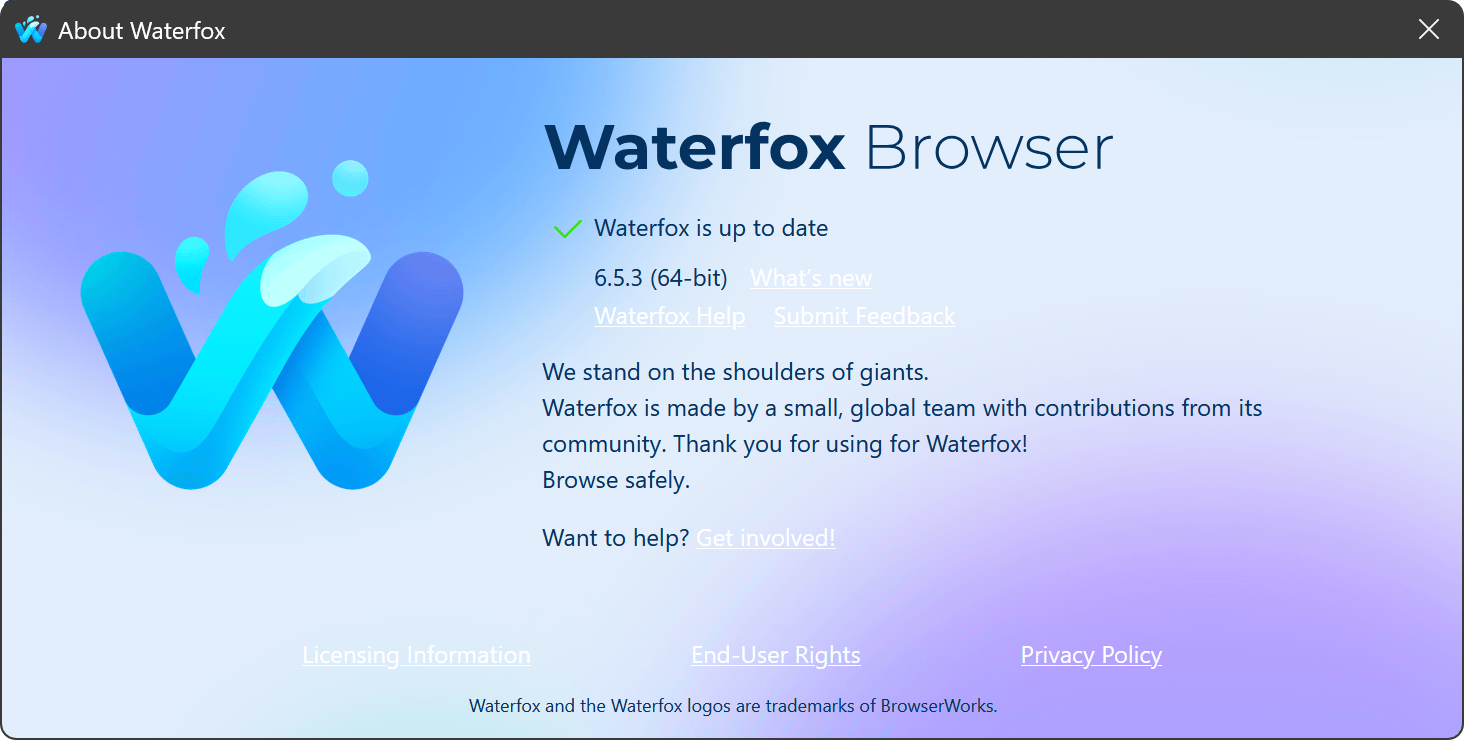
 at the right side of the Waterfox toolbar, go to Help, and select About Waterfox. macOS: In the menu bar, open the Waterfox menu and choose About Waterfox. The About Waterfox window will open.
 - Waterfox will check for updates automatically. If an update is available, it will be downloaded.
- When the download is complete, click Restart to update Waterfox.
Having problems?
If you’re having problems updating Waterfox, download the Waterfox installer, then close Waterfox and run the installer.
All of your data will be preserved.
Configure how Waterfox installs updates
- Click the menu button and select Settings.
- In the General panel, go to the Waterfox Updates section.
Note
Background updates are disabled in Waterfox. Updates are only checked for and installed while Waterfox is open.
Comments
Post a Comment
Do not insert clickable links or your comment will be deleted. Checkbox Send me notifications to be notified of new comments via email.