Waterfox Essentials: Disable or remove Add-ons


Extensions
and themes are types of add-ons for Waterfox. This article explains how you can disable or remove these add-ons.

Info

Waterfox includes OpenH264 and Google Widevine plugins, another type of add-on. To learn more, see Why is there an OpenH264 plugin in Waterfox? and Watch DRM content on Waterfox.

Disabling and removing extensions

Disabling extensions

Disabling an extension will turn it off without removing it.

  1. Click the menu button, click Add-ons and Themes and select Extensions.
  2. Scroll through the list of extensions.
  3. Click the blue toggle for the extension you wish to disable.fx72 disable extensions

To re-enable the extension, find it in the list of extensions and click the toggle for the corresponding extension. The toggle turns blue when enabled.

To disable extensions that have changed your New Tab, New Window or home page, see An extension changed my New Tab page or home page.

Removing extensions
  1. Click the menu button, click Add-ons and Themes and select Extensions.
  2. Scroll through the list of extensions.
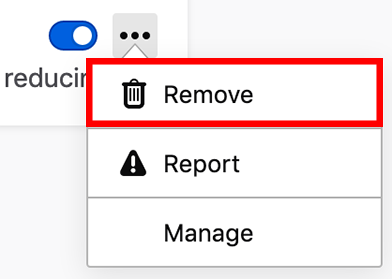
  3. Click the ellipsis (3-dot) icon for the extension you wish to remove and select Remove.fx72 remove extensions

Disabling and removing themes

Waterfox comes with a Default theme and optional Light and Dark themes, but you can add new themes to Waterfox. For additional information, see Use themes to change the look of Waterfox.

Disabling themes

Click the menu button, click Add-ons and Themes and select Themes.

You will see one Enabled theme and a list of Disabled themes.

When the Enabled theme is not the Default theme, you can disable it by clicking Disable.
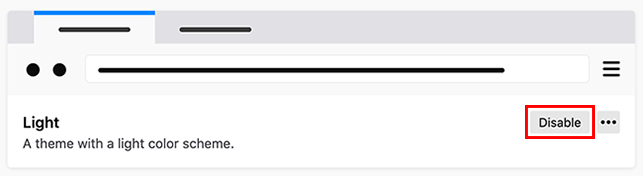
fx72 disable themes

This will enable the Default theme.

Info

When the Enabled theme is the Default theme, it will become disabled when you enable another theme.

Removing themes

You cannot remove the Default, Light or Dark themes that come with Waterfox, but you can remove themes you’ve added to Waterfox. To remove an added theme:

  1. Click the menu button, click Add-ons and Themes and select Themes.
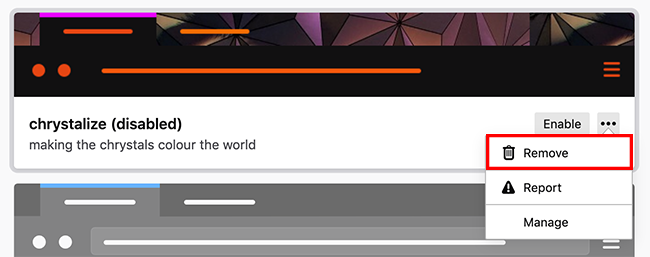
  2. Click the ellipsis (3-dot) icon that displays for the theme that you want to remove, and then select Remove.fx72 remove themes

Info

If you remove the Enabled theme, the Default theme will become enabled.

Comments

Popular posts from this blog

Windows 7 Keyboard Shortcuts.

Keyboard shortcuts are combinations of two or more keys that, when pressed, can be used to perform a task that would typically require a mouse or other pointing device. Keyboard shortcuts can make it easier to interact with your computer, saving you time and effort as you work with Windows and other programs.  Most programs also provide accelerator keys that can make it easier to work with menus and other commands. Check the menus of programs for accelerator keys.  If a letter is underlined in a menu, that usually means that pressing the Alt key in combination with the underlined key will have the same effect as clicking that menu item. Pressing the Alt key in some programs, such as Paint and WordPad, shows commands that are labeled with additional keys that you can press to use them. Dialog box keyboard shortcuts. The following table contains keyboard shortcuts for use in dialog boxes. Press this key To do this: Ctrl+Tab Move forward through tabs...

Windows 7 consumer security software providers.

We recommend that you install security software to help protect your computer from viruses and other security threats, and that you keep your security software up to date. Some companies use products that appear to be antivirus programs to install viruses or malware on your computer. When you install the program, you might also be installing the virus or other malware, without knowing it. Many companies, including those listed on this page, distribute antivirus programs. You should carefully investigate the source of antivirus and other products before downloading and installing them. The companies listed below provide consumer security software that is compatible with Windows 7. Just click the company name to see the Windows 7-compatible product they offer. For business security software that is compatible with Windows 7, please visit the Windows 7 Compatibility Center or contact your security vendor of choice. Important: Before you install antivirus software, check to make s...

Windows Media Player 12 Themes for Windows 7

Bored of your default Windows Media Player Skins?. Grab some fresh and new Windows Media Player 12 themes for Windows 7 ! Windows Media Player 12 Codecs Windows Media Player 12 comes with support for DivX and MP4, but it still lacks supports for many other video formats. (amr | mpc | ofr | divx | mka | ape | flac | evo | flv | m4b | mkv | ogg | ogv | ogm | rmvb | xvid)รน A popular codec pack can be downloaded here and here . Windows Media Player 12 Skins The following skin packages includes some really awesome themes for your Windows Media Player: Alienware Theme Batman Theme Catwoman Theme Darkstar Theme Half-Life Theme Halo 2 Theme The Last Samurai Theme Stalker Theme XBOX Theme XSN Sports Them Download Windows Media Player Themes Pack 1 (70 Skins) Download Windows Media Player Themes Pack 2 (12 Skins) New Year Theme 2010 for Windows 7 This theme can be downloaded for free from uploaded.to Custom Search If you liked this article, subscribe t...