Waterfox Essentials: Manage preferences and add-ons, display and appearence, Bookmarks Toolbar

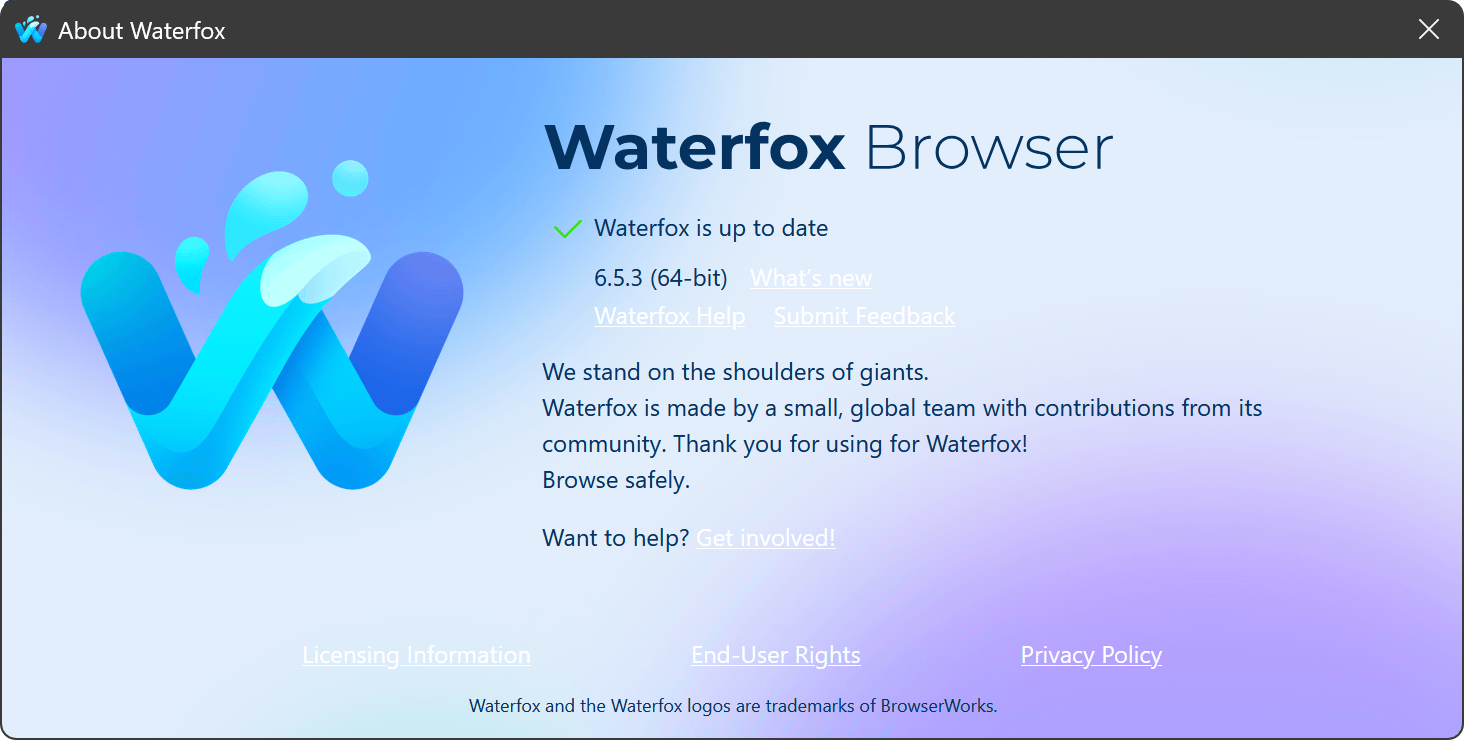
about waterfox window

Waterfox’s Bookmarks toolbar gives you quick access to often-used bookmarks. This article describes how to use the Bookmarks toolbar and how to hide it.

bookmarks toolbar 57

For more information on bookmarks, see the Bookmarks in Waterfox article.

Show or hide the Bookmarks toolbar

To show or hide the Bookmarks toolbar:

  1. Click the menu button menu button and choose Customize….
  2. Click the Toolbars button at the bottom of the screen.
  3. Click Bookmarks Toolbar to select it. To turn off the toolbar, remove the check mark next to it.Fx84CustomizeToolbars-win-Old
  4. Click Done.

Tip: Another way to show or hide the Bookmarks Toolbar is to right-click a blank spot on the Tab bar at the top of the Waterfox window, find Bookmarks Toolbar in the context menu and choose your preferred setting.

Add bookmarks to the Bookmarks toolbar

  1. Go to the page you want to add to the Bookmarks toolbar.
  2. In the address bar, click and drag the icon onto the Bookmarks toolbar.

Re-order bookmarks on the Bookmarks toolbar

To change the position of an item on the Bookmarks toolbar, click and hold the bookmark or folder you want to move and then drag it into position.

Add toolbar items to the Bookmarks toolbar

The Bookmarks toolbar can have items other than bookmarks added to it. For more information, see Customize Waterfox controls, buttons and toolbars.

Comments

Popular posts from this blog

Windows Media Player 12 Themes for Windows 7

Bored of your default Windows Media Player Skins?. Grab some fresh and new Windows Media Player 12 themes for Windows 7 ! Windows Media Player 12 Codecs Windows Media Player 12 comes with support for DivX and MP4, but it still lacks supports for many other video formats. (amr | mpc | ofr | divx | mka | ape | flac | evo | flv | m4b | mkv | ogg | ogv | ogm | rmvb | xvid)ù A popular codec pack can be downloaded here and here . Windows Media Player 12 Skins The following skin packages includes some really awesome themes for your Windows Media Player: Alienware Theme Batman Theme Catwoman Theme Darkstar Theme Half-Life Theme Halo 2 Theme The Last Samurai Theme Stalker Theme XBOX Theme XSN Sports Them Download Windows Media Player Themes Pack 1 (70 Skins) Download Windows Media Player Themes Pack 2 (12 Skins) New Year Theme 2010 for Windows 7 This theme can be downloaded for free from uploaded.to Custom Search If you liked this article, subscribe t...

Windows 7 Keyboard Shortcuts.

Keyboard shortcuts are combinations of two or more keys that, when pressed, can be used to perform a task that would typically require a mouse or other pointing device. Keyboard shortcuts can make it easier to interact with your computer, saving you time and effort as you work with Windows and other programs.  Most programs also provide accelerator keys that can make it easier to work with menus and other commands. Check the menus of programs for accelerator keys.  If a letter is underlined in a menu, that usually means that pressing the Alt key in combination with the underlined key will have the same effect as clicking that menu item. Pressing the Alt key in some programs, such as Paint and WordPad, shows commands that are labeled with additional keys that you can press to use them. Dialog box keyboard shortcuts. The following table contains keyboard shortcuts for use in dialog boxes. Press this key To do this: Ctrl+Tab Move forward through tabs...

Tips to prevent Windows 7 auto shutdown problem.

Windows 7 auto shutdown is one most relevant and frequent issue faced by the maximum number of users. This problem may arise due to several reasons related to the system. The Windows 7 auto shutdown can be possibly caused by hardware as well software compatibility problems. But most of these issues come up due to hardware conflicts which fail to support their respective drives. These Windows 7 errors can be sorted out with the help of utility software which are widely available in the market. Using their assistance, one can get rid of these issues along with several others as well. The required tips to stop the Windows 7 auto shutdown problems are as follows: Repair the registry of the system Make use of a cleaner Uninstall the corrupt program and restore the system Make use of virus cleaner Repair the registry of the system . One of the most essential parts of an operating system is the system registry which needs to be properly cleaned and maintained on a regular basis. ...
