Add-ons allow you to add extra features and functionality to Waterfox. If you need help installing add-ons, see Find and install add-ons to add features to Waterfox.
For fixes and new features, keep your add-ons up to date. Here’s how to update your add-ons.
Updating add-ons
- Click the menu button
 , click Add-ons and Themes and select Extensions.
 - Click the gear icon
 in the upper-right area of the Extensions panel.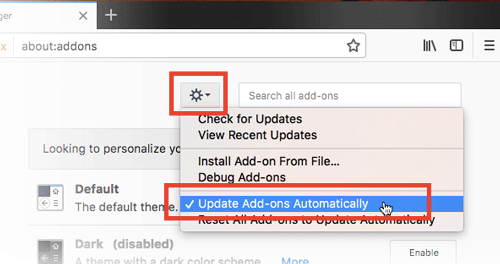
- Choose one of the options below:
- Check for Updates: Allows you to check for any updates to your add-ons manually. If there is an update available, you have the option to choose to update it now or later.
- View Recent Updates: When you click this option, a Recent Updates panel appears on the left, showing your last updated add-ons.
- Update Add-ons Automatically: If you want to keep your add-ons up to date, select this option to let them update automatically.
- Reset All Add-ons to Update Automatically: If any add-ons have been set to update manually, clicking this option will reset all add-ons to update automatically.
Update settings for specific add-ons
Warning: Turning off automatic updates might make you miss important security updates to your installed add-ons. We recommend that if you don’t use an add-on, disable it instead of turning off automatic updates. You can individually adjust the update method for each extension as follows, when the recommended Update Add-ons Automatically option has been selected:
-
Go to the Extensions panel.
-
Click More to see the details page of a specific extension.
-
Find the Automatic Updates line. (You may need to scroll down the page).
-
Select Off to set manual updates for that extension. When automatic updates are turned off, a Check for Updates link will appear on the same line.
-
Select On or Default to set the extension to update automatically.
-
-
If you want, you can go back to the Extensions panel to set up others.
-
Close the Add-ons Manager (about:addons) tab.
Can I update legacy add-ons?
Extensions that do not meet Waterfox’s new add-on technology have been deactivated and moved to the Legacy Extensions panel. If you need the add-on, you can visit the developer’s website to see if it will be migrated to the WebExtensions standard. The extension will automatically update when the add-on developer provides a compatible version. You can also follow these instructions to look for a replacement:
-
Click the menu button
, click Add-ons and Themes and select Legacy Extensions. -
Click the Find a Replacement button to the right of the add-on. If a replacement isn’t available, the Featured Add-ons page will open, where you can search for a compatible alternative. The Extension Finder utility can also help you find replacement extensions.
Comments
Post a Comment
Do not insert clickable links or your comment will be deleted. Checkbox Send me notifications to be notified of new comments via email.