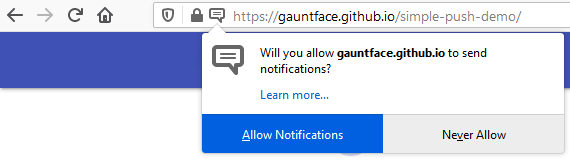
Web Push allows websites to notify you of new messages or updated content. While Waterfox is open, websites which have been granted permission can send notifications to your browser, which displays them on the screen. Notifications only display when you press a key on your keyboard or tap/click anywhere on the website that you are accessing. If you have not interacted with the website, then the Notification permission  icon will only display in the address bar; the actual notification will not display. You can easily allow or disable notifications and control how they appear.
Upgraded Notifications
Waterfox can deliver on-screen notifications even when that site is not loaded. Using the Push API, a W3C standard, Waterfox receives a push message and can show notifications (if permitted by the user) at any time. Sites can also use Push to update data in the background, even without showing you a notification. If you already gave permission to a site to send notifications, the site will also be able to use the Push API. You can choose whether or not to give permission for a specific website by following these instructions:
- Click the padlock
 in the address bar.
 - Click the arrow in the Site Information drop-down panel.
- Click More information in the next panel to bring up the Page Info window.
- Click the Permissions tab.
- Under Send Notifications, choose a notification option: Always Ask, Allow, or Block. If your choices are grayed out, deselect the Use Default checkbox.
Alternatively, you can:
- Click the menu button
 and select Settings.
 - Click Privacy & Security from the left pane.
- Scroll to the Permissions section.
- Click the Settings… button to the right of Notifications.
- Select Allow or Block from the Status drop-down for any of the websites.
- Click the Save Changes button.
What is Web Push?
Web Push is an optional feature that allows websites to send you messages even when the site is not loaded. Sites can use this feature to provide you with notifications or update data in the background.
For example, you can subscribe to notifications from your favorite shopping websites that can notify you of new promotions or offers. You can subscribe to notifications from different websites. A concert site may offer you notifications for shows of your favorite band. You decide to allow that site to notify you, and a week later you get a notification that your band is on tour.
You will only receive messages from sites that you have granted permission.
How does it work?
Websites can install a Service Worker, a background web page with a limited set of functionality, that can subscribe to the push service. The website can then send a push message through Waterfox’s Web Push service to your browser, which can process that message and display a notification on your screen.

Clicking the notification can open a website or switch to that site’s tab if loaded.
What information do I share with a website?
A website that has been granted permissions can send you push messages when the site is not loaded. A quota limits the number of push messages without an on-screen notification that websites can send you. Websites that exceed the quota will have its push messaging disabled and the user must revisit the website again to resubscribe. Web Push does not directly allow websites to determine your IP address.
What information does Waterfox use to provide Web Push?
Waterfox maintains an active connection to a push service in order to receive push messages as long as it is open. The connection ends when Waterfox is closed. We store a randomized identifier (User Agent IDentifier or UAID) on our server for your browser, along with a random client-generated identifier for each push subscription. When you have any subscriptions, the UAID is required to allow our push service to route incoming messages to Waterfox. If you don’t have any active push notification subscriptions, Waterfox rotates the UAID on each new connection.
On Waterfox for desktop, the push service is operated by Mozilla. Waterfox for Android uses a combination of the Mozilla Web Push service and Google’s Cloud Messaging platform to deliver notifications to Waterfox for Android. Only Waterfox’s applications are enabled to use WebPush on iOS (third-parties are prohibited from using WebPush to send notifications to iOS per the iOS usage agreement.)
In both cases, push messages are encrypted per the IETF spec, and only your copy of Waterfox can decipher them. The encrypted messages are stored on the server until they are delivered or expired.
We store your IP address for 90 days as part of this service. The stored information is invalidated when either the IP Address or UAID is changed. We do not store information about:
- the servers and/or services that have sent messages
- when a particular user agent was online/active
How do I revoke Web Push permissions for a specific site?
Web Push is always opt-in in Waterfox. A site cannot send you push messages without your permission. To stop a specific site from sending you push messages:
- Click the menu button and select Settings.
- Click Privacy & Security from the left pane.
- Scroll to the Permissions section.
- Click the Settings… button next to Notifications.
- Select the website.
- Click the Remove Website button.
To stop all sites from sending you push messages, follow the steps above but instead of selecting a specific site click the Remove All Websites button. Websites will not be able to send you messages and will need to ask your permission to send them in the future.
To stop notifications on a specific webpage (requires a page reload): Click the padlock to bring up the Site Information panel for the website, find the Send Notifications permission and click the x next to Allowed to remove the permission.
How do I add Web Push to my website?
The Push API specification explains how to create a Service Worker and send push messages.
How do I stop Waterfox asking me to allow notifications?
If a site indicates to Waterfox that it wants to show notifications, by default, Waterfox asks whether you want to grant permission. You can set Waterfox to automatically deny permission without asking. Even after the change, you can make exceptions for sites you want to show notifications or use push features.
- Click the menu button and select Settings.
- Click Privacy & Security from the left pane.
- Scroll to the Permissions section.
- Click the Settings… button to the right of Notifications.
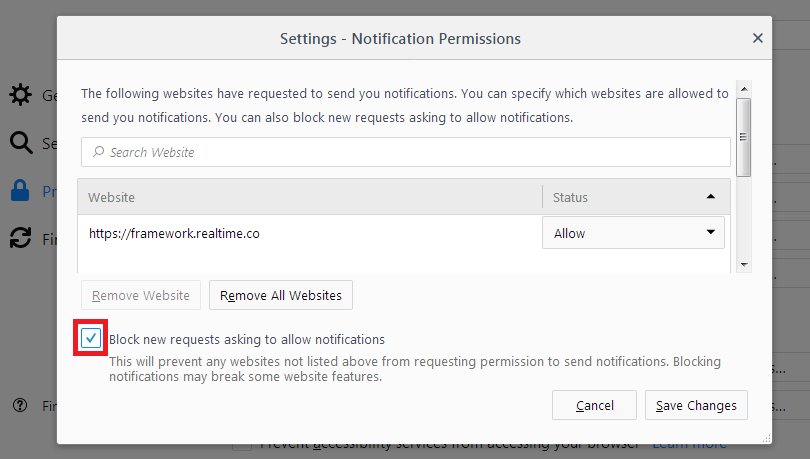
- Select the Block new requests asking to allow notifications checkbox.
- Click the Save Changes button.
Comments
Post a Comment
Do not insert clickable links or your comment will be deleted. Checkbox Send me notifications to be notified of new comments via email.