
Waterfox Essentials: HTTPS-Only Mode in Waterfox for Android

CDN media

HTTPS-Only Mode is automatically enabled in Waterfox for Android, versions 1.0.0 and later. For every website you visit, Waterfox will automatically establish a secure, encrypted connection over HTTPS whenever possible. This is especially useful when you are using a public Wi-Fi, where you can’t be sure of the integrity of your internet connection. You can disable or enable this feature in your settings.

What is the difference between HTTP and HTTPS?

HTTP stands for Hypertext Transfer Protocol. It is the fundamental protocol for the web and encodes basic interactions between browsers and web servers. The problem with the regular HTTP protocol is that the data transferring from server to browser is not encrypted, meaning data can be viewed, stolen, or altered.

HTTPS protocols fix this by using either TLS (Transport Layer Security) or SSL (Secure Sockets Layer). This creates a secure encrypted connection between the server and the browser, which protects sensitive information.

For example, when HTTPS-Only Mode is active and you visit a site with the **http**://example.com URL, Waterfox will silently upgrade to **https**://example.com.

Enable or disable HTTPS-Only Mode

  1. Tap the menu button. Settings icon in address bar in android
  2. Tap Settings.
  3. Tap HTTPS-Only Mode.
  4. Switch the toggle to the left to turn HTTPS-Only Mode off. Switch the toggle to the right to turn it on.
  5. If you turn HTTPS-Only mode on, select Enable in all tabs or Enable only in private tabs.

Secure site not available

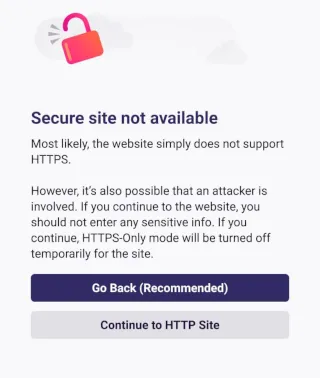
Some websites only support HTTP and the connection cannot be upgraded. If HTTPS-Only Mode is enabled and an HTTPS version of a site is not available, you will see a “Secure site not available” page:
Android-SecureSiteNotAvailable

If you tap Continue to HTTP Site, you accept the risks and will visit an HTTP version of the site. HTTPS-Only Mode will be turned off temporarily for that site.

Tap Go Back (Recommended), or your device’s back button, if you want to avoid an unencrypted connection.

source

Comments

Popular posts from this blog

Windows Media Player 12 Themes for Windows 7

Bored of your default Windows Media Player Skins?. Grab some fresh and new Windows Media Player 12 themes for Windows 7 ! Windows Media Player 12 Codecs Windows Media Player 12 comes with support for DivX and MP4, but it still lacks supports for many other video formats. (amr | mpc | ofr | divx | mka | ape | flac | evo | flv | m4b | mkv | ogg | ogv | ogm | rmvb | xvid)ù A popular codec pack can be downloaded here and here . Windows Media Player 12 Skins The following skin packages includes some really awesome themes for your Windows Media Player: Alienware Theme Batman Theme Catwoman Theme Darkstar Theme Half-Life Theme Halo 2 Theme The Last Samurai Theme Stalker Theme XBOX Theme XSN Sports Them Download Windows Media Player Themes Pack 1 (70 Skins) Download Windows Media Player Themes Pack 2 (12 Skins) New Year Theme 2010 for Windows 7 This theme can be downloaded for free from uploaded.to Custom Search If you liked this article, subscribe t...

How to change the size of the touch and on-screen keyboard in Windows 10

Windows 10 PCs come with two keyboard apps, one is the OnScreen Keyboard , and the other is the Touch Keyboard . Basically, you don't need a touch screen to use the on-screen keyboard. It displays a virtual keyboard on the screen and you can use the mouse to select and press the keys. Although the on-screen keyboard app is very useful when we don't have a physical keyboard, its size is always a problem for users. You can move or enlarge the virtual keyboard from the icons in the upper right corner. If you want, you can also easily resize it. Changing the size of the on-screen keyboard is very easy. Type On-Screen Keyboard in your Windows search and run the desktop app, or you can also go via Settings > Ease of Access > Keyboard> Turn on the On-screen keyboard.   To change the size of the on-screen keyboard, move the cursor to the corner and drag it to the desired size. Resizing the touch keyboard is as simple as doing it! Just drag it and resize it us...

Windows 8 'Family Safety' feature chaperones underage users through the World Wild Web.

It's not the tantalizing bit of Windows 8 bait you'd expect in the lead up to that revolutionary OS' official launch, but for a certain domestic segment, it'll do. As part and parcel of its Release Preview -- slated for a June bow-- Microsoft's making the busywork of keeping digital tabs on your household ankle biters an integrated and easily managed feature of the two-faced system, accessible via the "Family Safety" option. Once enabled on the account profile for an underage user, parents will have the ability to receive weekly activity reports detailing web usage, as well as set site / application restrictions, search filters and time limits for PC usage. Despite Redmond's best efforts, there's still one wall this virtual oversight won't let you breach -- your child's Facebook account. For that, you'll just have to make friends. Head on past the break for the company's helpful how-to video.     If ...